> ## Documentation Index
> Fetch the complete documentation index at: https://podonos.com/docs/llms.txt
> Use this file to discover all available pages before exploring further.

# Wizard

> Start evaluations without a single line of code

### Overview

Now you can handle everything in one place. This guide shows you how to create and manage evaluations directly from your workspace, without any need for the SDK or file uploads.

<Tabs>
  <Tab title="Single Audio Evaluation">
    <Tip>You can evaluate the **naturalness** or **quality** of individual audio files.</Tip>

    <Steps>
      <Step title="Log in to Workspace" />

      <Step title="Create a New Evaluation">
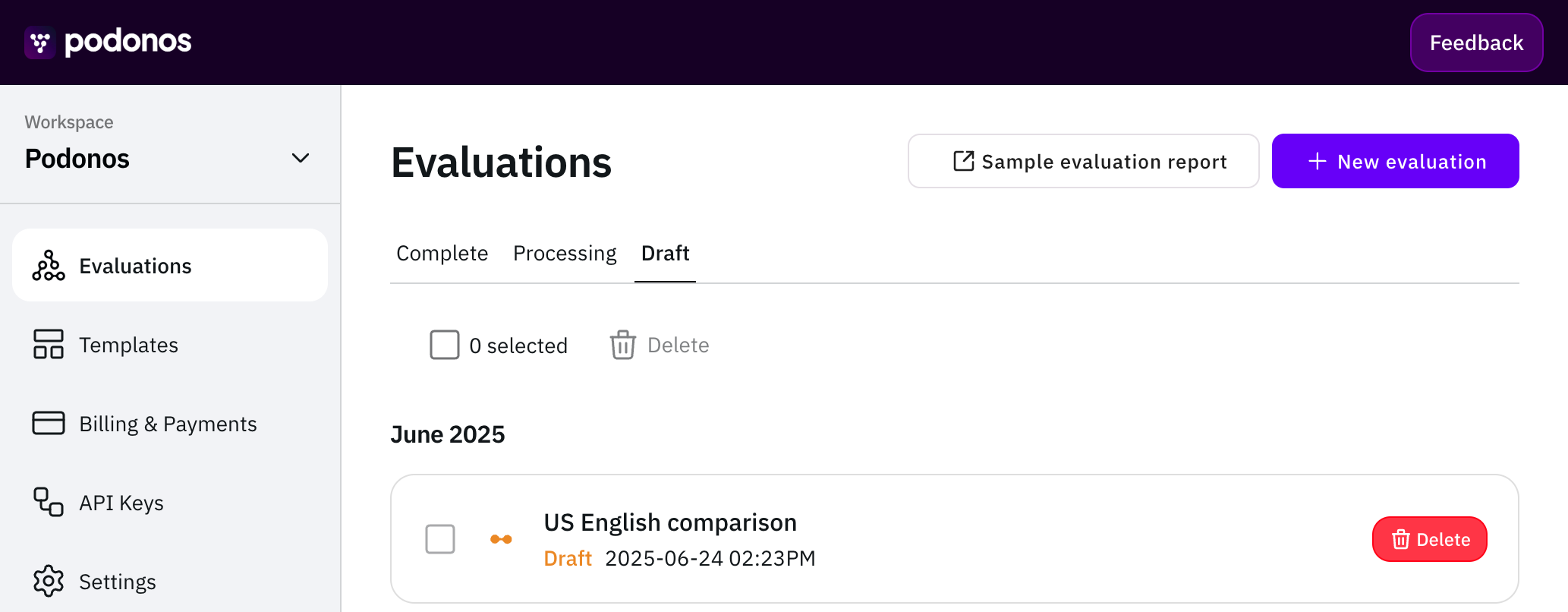
        Go to the **Evaluations** page and click **+ New evaluation**.
        <Frame>
          ![workspace-draft.png](https://static-public.podonos.com/docs/workspace-draft.png)
        </Frame>
      </Step>

      <Step title="Make your selection">
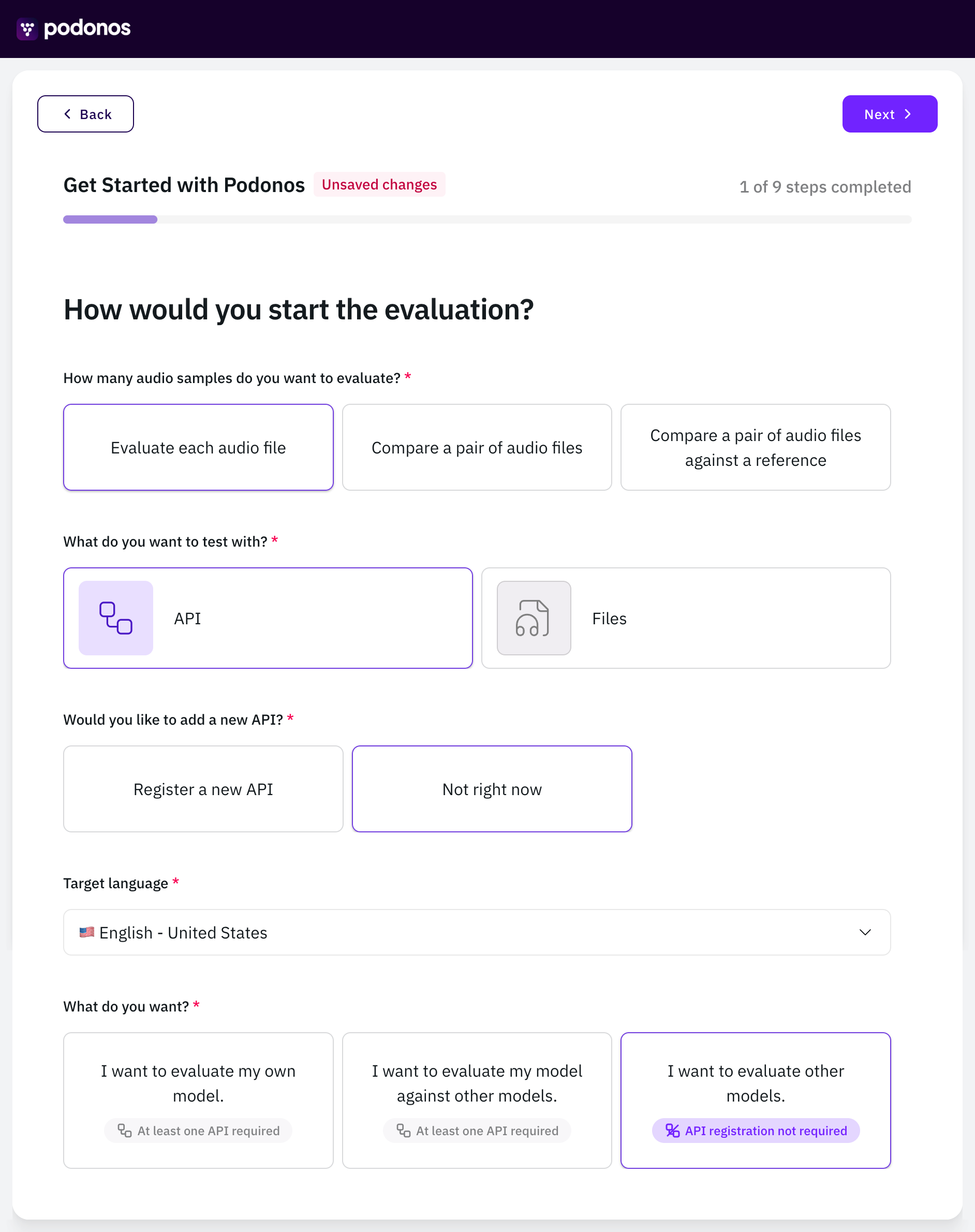
        Choose how you'd like to create your new evaluation.
        <Frame>
          ![easy-to-start-api.png](https://static-public.podonos.com/docs/easy-to-start-api.png)
        </Frame>
      </Step>

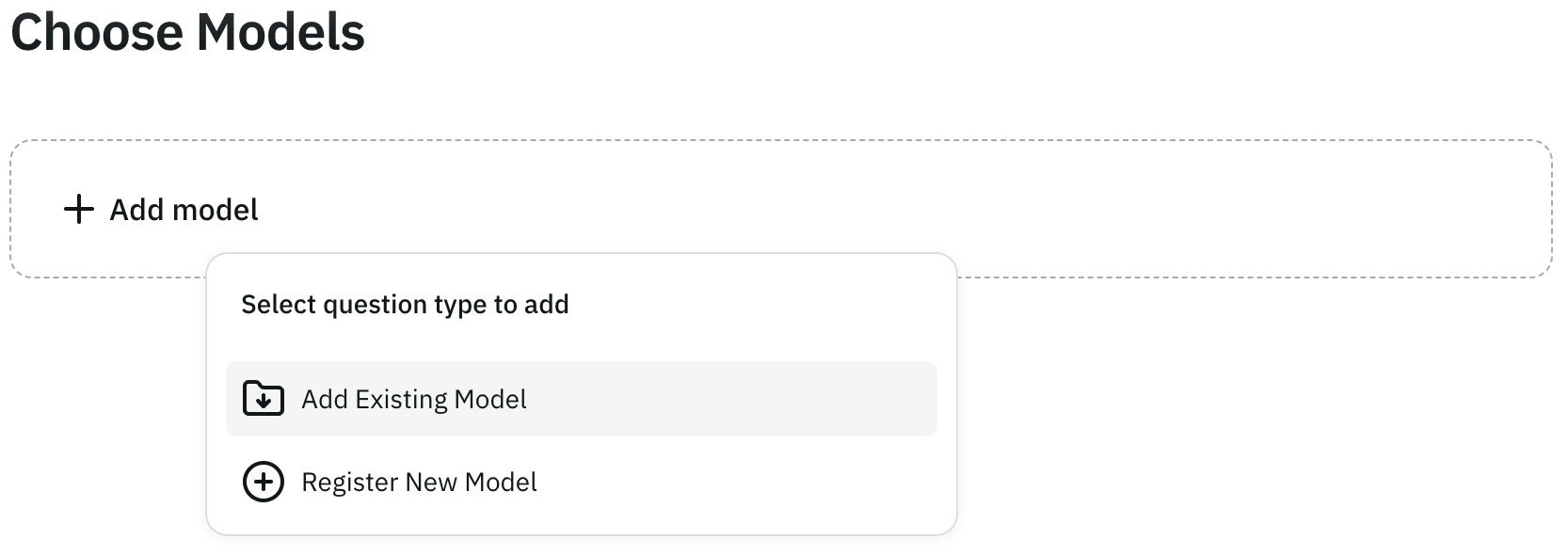
      <Step title="Choose Models">
        Add models you'd like to evaluate.

        <Frame>
          ![choose-model-add.png](https://static-public.podonos.com/docs/choose-model-add.png)
        </Frame>

        Select the provider of the models you'd like to evaluate.

        <Frame>
          ![choose-model-provider.png](https://static-public.podonos.com/docs/choose-model-provider.png)
        </Frame>

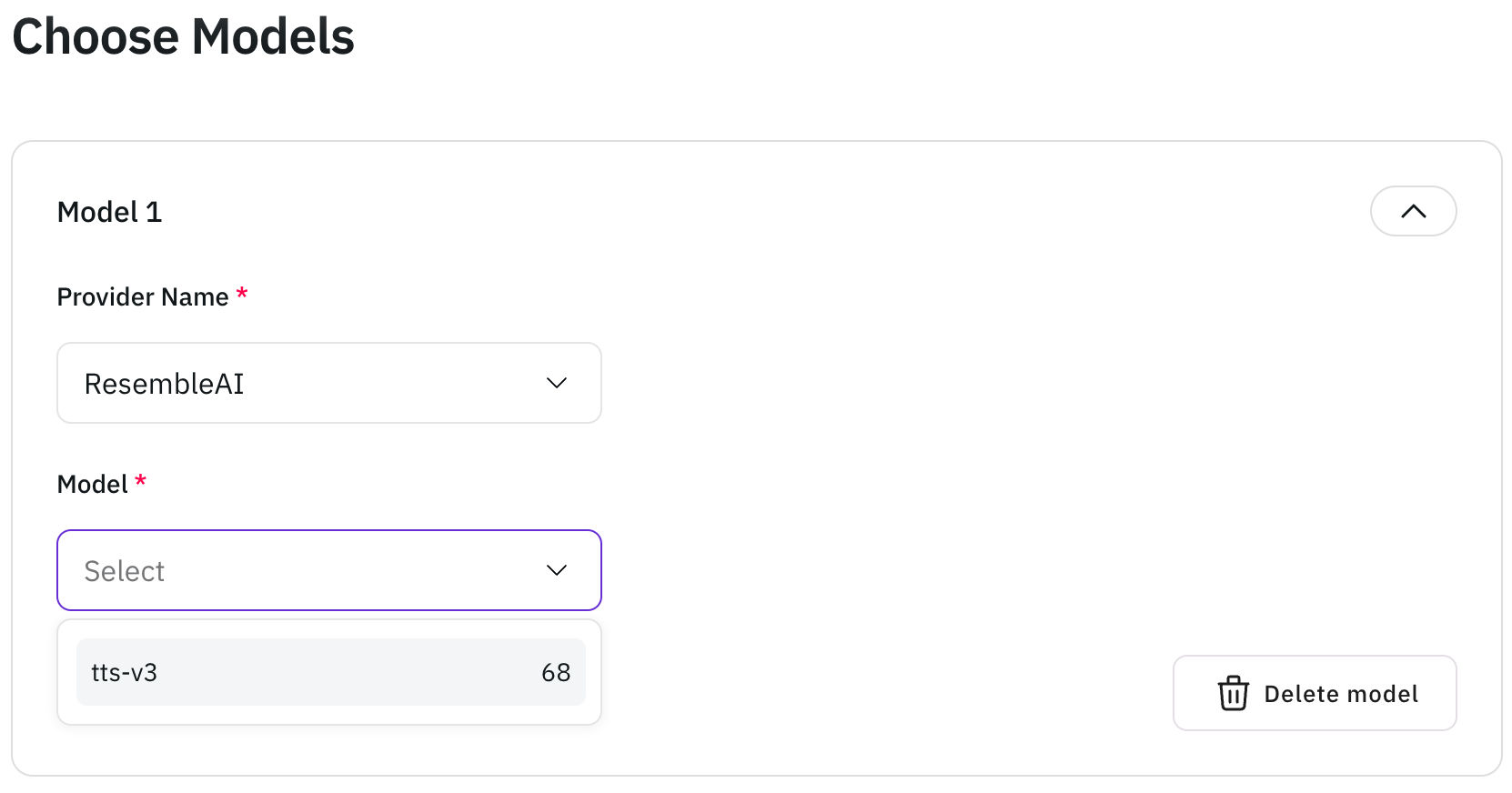
        Select the model you'd like to evaluate.
        <Frame>
          ![choose-model-model.png](https://static-public.podonos.com/docs/choose-model-model.png)
        </Frame>

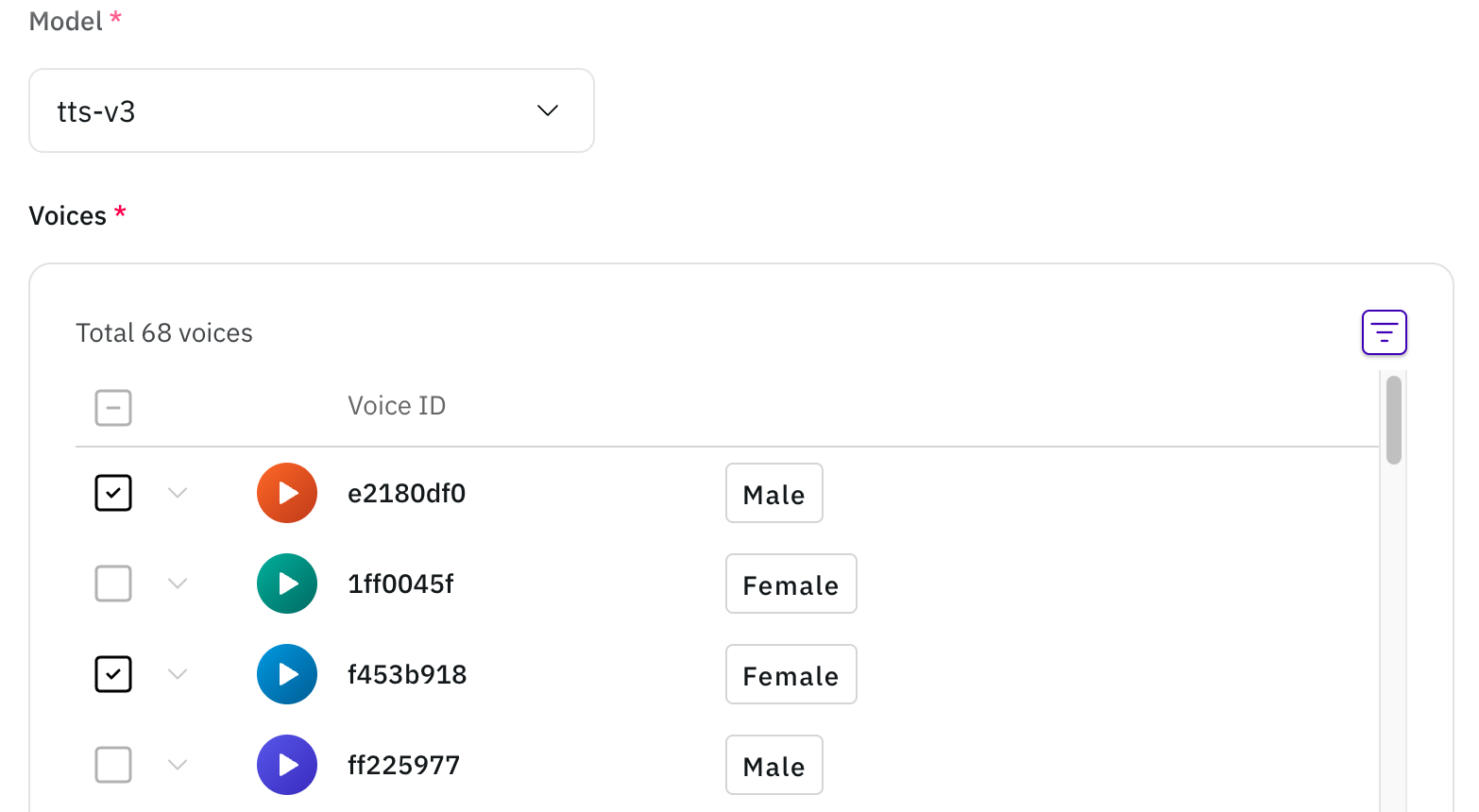
        Select the voice you'd like to evaluate.
        <Frame>
          ![choose-model-voice.png](https://static-public.podonos.com/docs/choose-model-voice.png)
        </Frame>
      </Step>

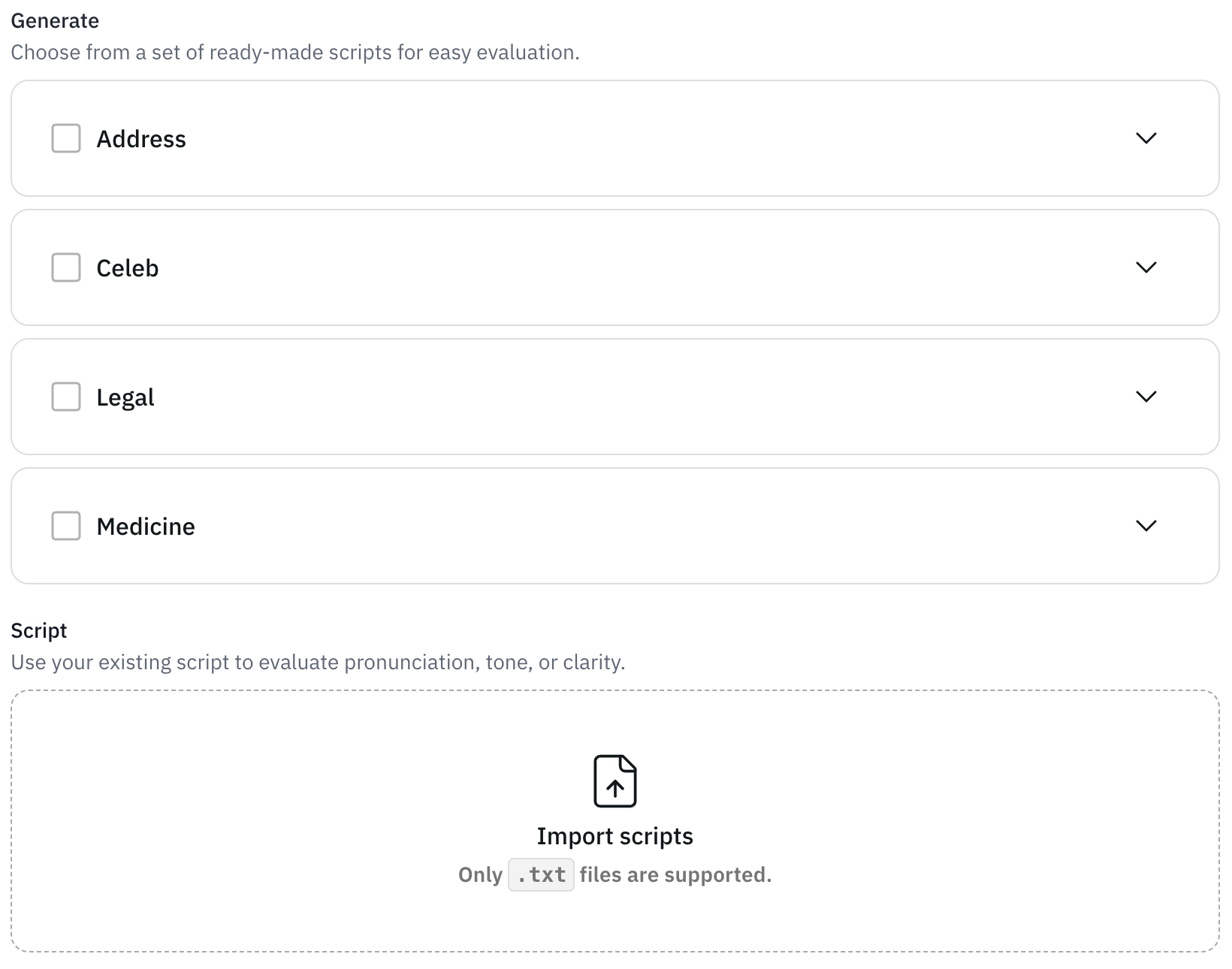
      <Step title="Choose Scripts">
        Select the scripts you'd like to use for your evaluation.
        <Frame>
          ![script.png](https://static-public.podonos.com/docs/script.png)
        </Frame>

        <br />

        <Frame>
          ![script-selected.png](https://static-public.podonos.com/docs/script-v2.png)
        </Frame>
      </Step>

      <Step title="Set up Instructions">
        Choose an instruction type (**Do**, **Warning**, or **Don't**) and provide
        clear guidance to help participants complete the evaluation effectively.

        <Frame>
          ![5-create-instruction.png](https://static-public.podonos.com/docs/setup-instructions.png)
        </Frame>

        You can also include detailed examples for clarity.

        <Frame>
          ![5-1-instruction-example.png](https://static-public.podonos.com/sdk/no-code-evaluation/5-1-instruction-example.png)
        </Frame>
      </Step>

      <Step title="Set up Questions">
        Now, you can create questions for your evaluation. You can use pre-built
        templates or create your own questions. Click **Add question** to start
        customization.

        <Frame>
          ![setup-questions.png](https://static-public.podonos.com/docs/setup-questions.png)
        </Frame>

        Once added, you can further refine your custom questions:

        <Frame>
          ![6-1-create-custom-query.png](https://static-public.podonos.com/sdk/no-code-evaluation/6-1-create-custom-query.png)
        </Frame>
      </Step>

      <Step title="Set up voting and assignment settings">
        Fill in the basic information of a new evaluation, such as the title and a
        detailed description.

        <Frame>
          ![voting-and-assignment-setting.png](https://static-public.podonos.com/docs/voting-and-assignment-setting.png)
        </Frame>
      </Step>

      <Step title="Review generated audio files">
        You can review the generated audio files on the Preview page.

        <Frame>
          ![audio-generation-preview.png](https://static-public.podonos.com/docs/audio-generation-preview.png)
        </Frame>
      </Step>

      <Step title="Review evaluation details">
        Review all the details of your evaluation on the summary page. Ensure that all
        the information is correct before confirmation.

        <Frame>
          ![summary-checkout.png](https://static-public.podonos.com/docs/summary-checkout.png)
        </Frame>

        If necessary, proceed to payment section to confirm your evaluation.
      </Step>

      <Step title="Request Complete and View Evaluation Results">
        Once you finish the final review, your evaluation request is confirmed.

        <Frame>
          ![request-complete.png](https://static-public.podonos.com/docs/request-complete.png)
        </Frame>

        You can view the details of your completed evaluation from the Workspace or
        through email.

        <Frame>
          ![eval-overview.png](https://static-public.podonos.com/docs/eval-overview.png)
        </Frame>
      </Step>
    </Steps>
  </Tab>

  <Tab title="Double Audio Evaluation ">
    <Tip>You can evaluate **voice similarity** or **preference** for each audio file pair.</Tip>

    <Steps>
      <Step title="Log in to Workspace" />

      <Step title="Create a New Evaluation">
        Go to the **Evaluations** page and click **+ New evaluation**.

        <Frame>
          ![workspace-draft.png](https://static-public.podonos.com/docs/workspace-draft.png)
        </Frame>
      </Step>

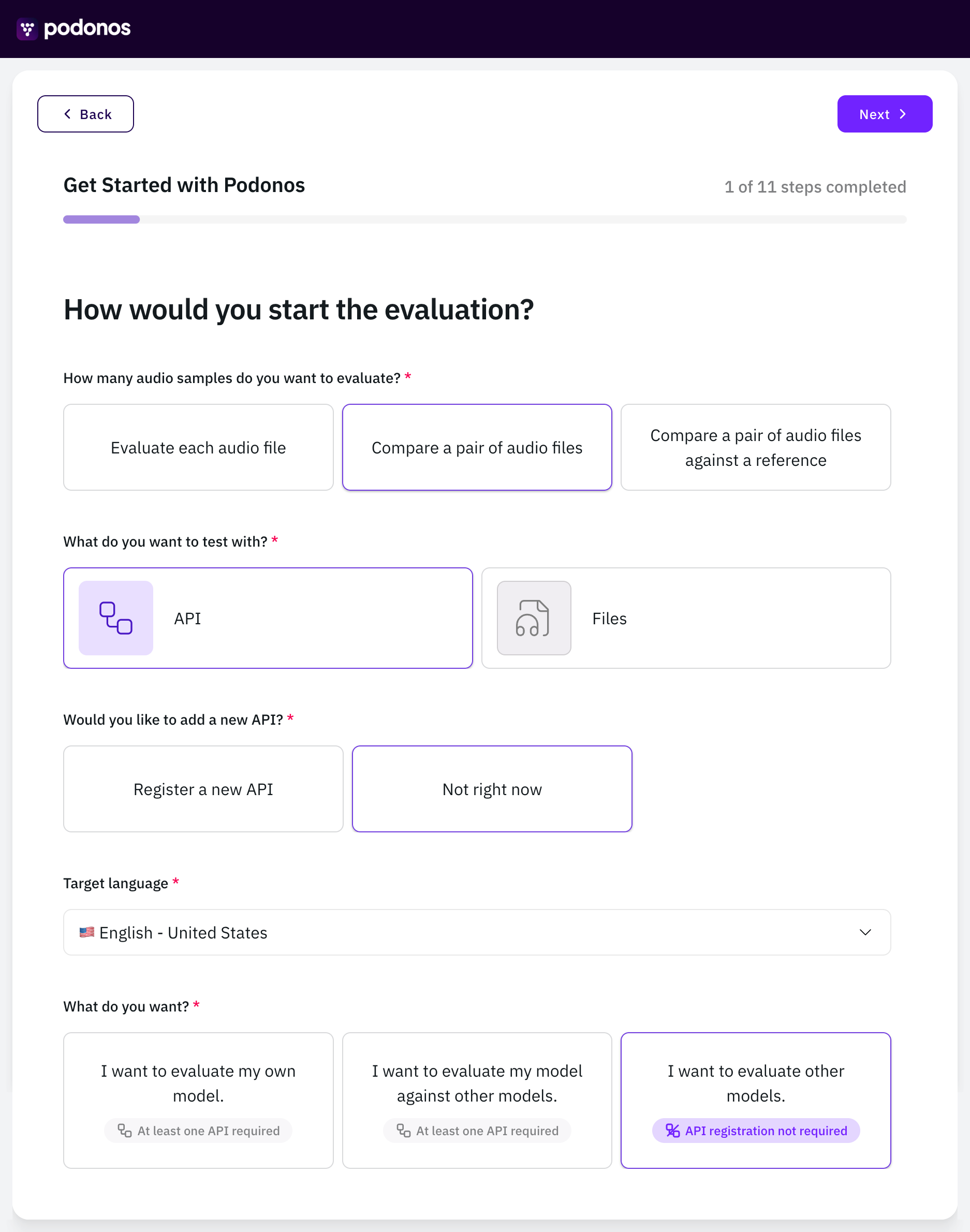
      <Step title="Make your selection">
        Choose how you'd like to create your new evaluation.

        <Frame>
          ![easy-to-start-api.png](https://static-public.podonos.com/docs/easy-to-start-double.png)
        </Frame>
      </Step>

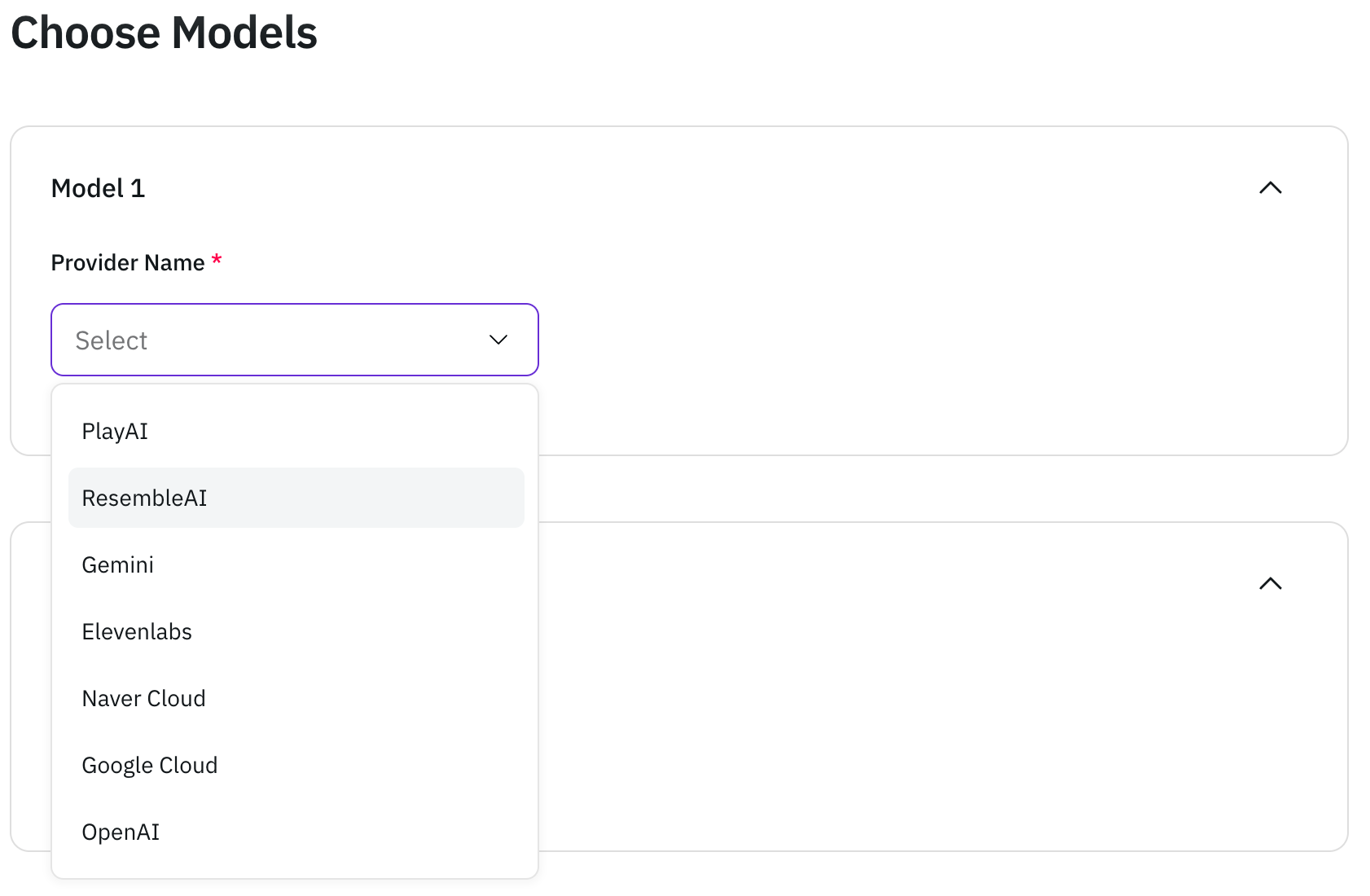
      <Step title="Choose Models">
        Select the provider of the models you'd like to evaluate.

        <Frame>
          ![choose-model-provider.png](https://static-public.podonos.com/docs/choose-model-double.png)
        </Frame>

        Select the model you'd like to evaluate.

        <Frame>
          ![choose-model-model.png](https://static-public.podonos.com/docs/choose-model-model.png)
        </Frame>

        Select the voice you'd like to evaluate.

        <Frame>
          ![choose-model-voice.png](https://static-public.podonos.com/docs/choose-model-voice.png)
        </Frame>
      </Step>

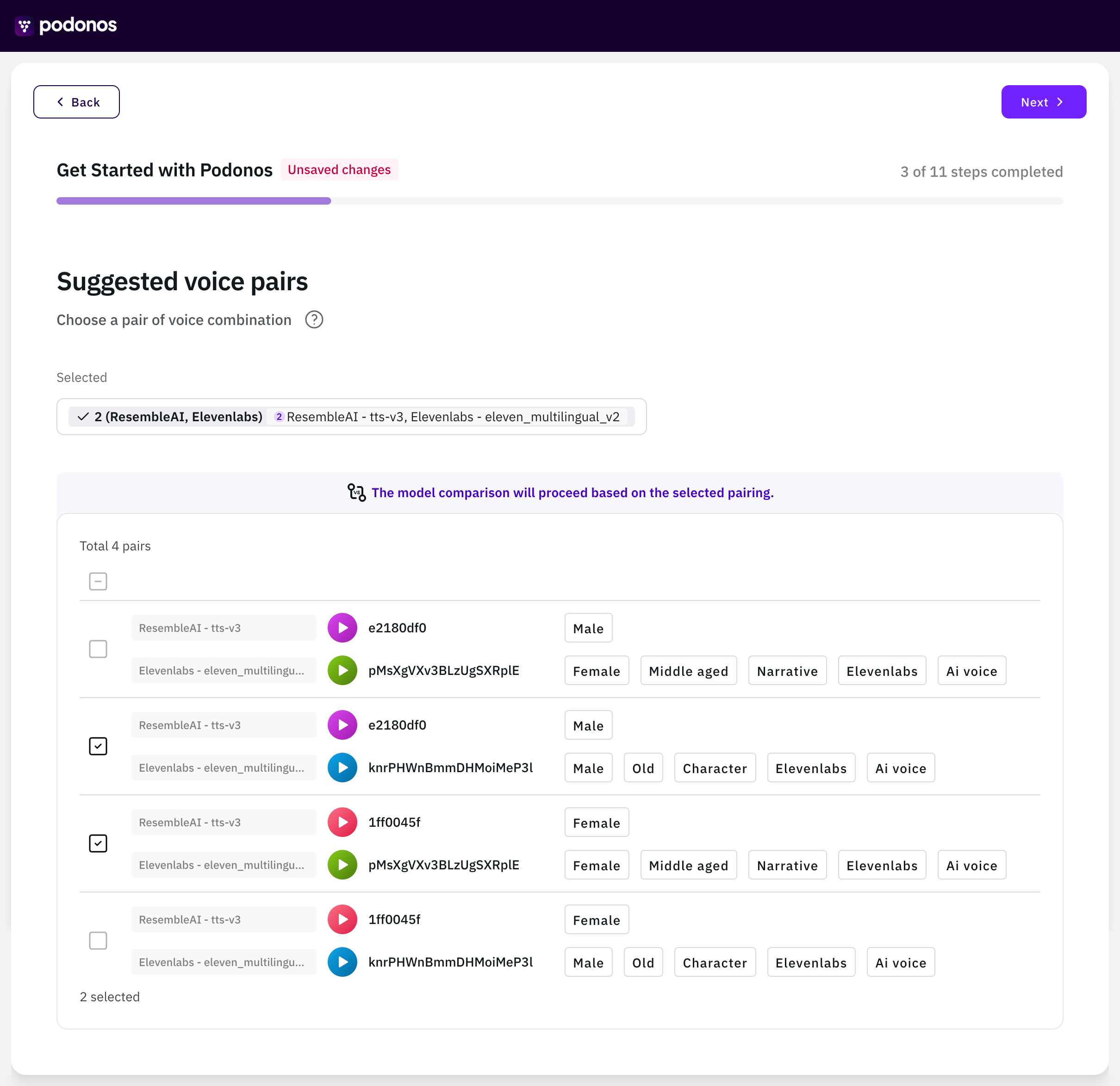
      <Step title="Choose voice pairs">
        Select the voice pairs you'd like to evaluate.

        <Frame>
          ![choose-voice-pair.png](https://static-public.podonos.com/docs/voice-pair.png)
        </Frame>
      </Step>

      <Step title="Choose Scripts">
        Select the scripts you'd like to use for your evaluation.

        <Frame>
          ![script.png](https://static-public.podonos.com/docs/script.png)
        </Frame>

        <br />

        <Frame>
          ![script-selected.png](https://static-public.podonos.com/docs/script-v2.png)
        </Frame>
      </Step>

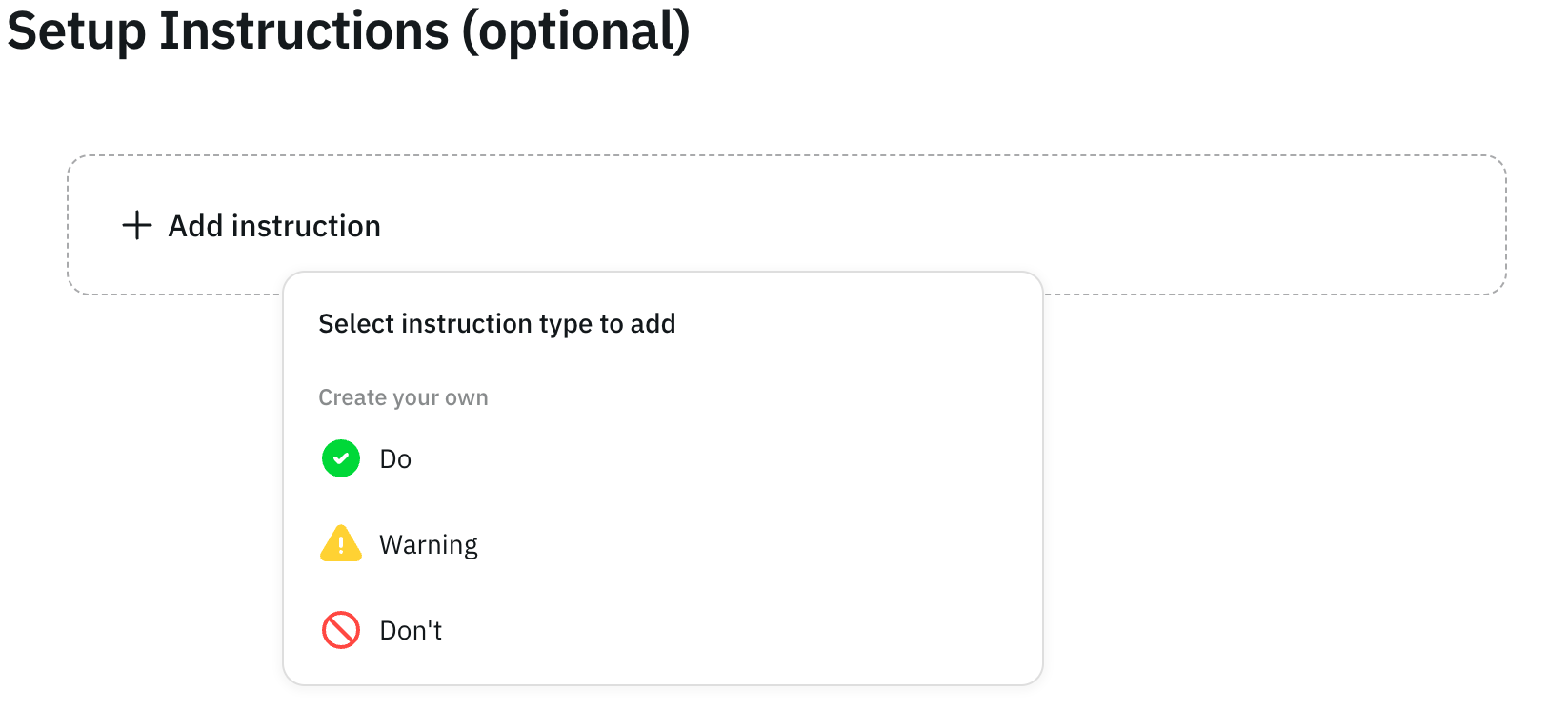
      <Step title="Set up Instructions">
        Choose an instruction type (**Do**, **Warning**, or **Don't**) and provide
        clear guidance to help participants complete the evaluation effectively.
        <Frame>
          ![5-create-instruction.png](https://static-public.podonos.com/docs/setup-instructions.png)
        </Frame>

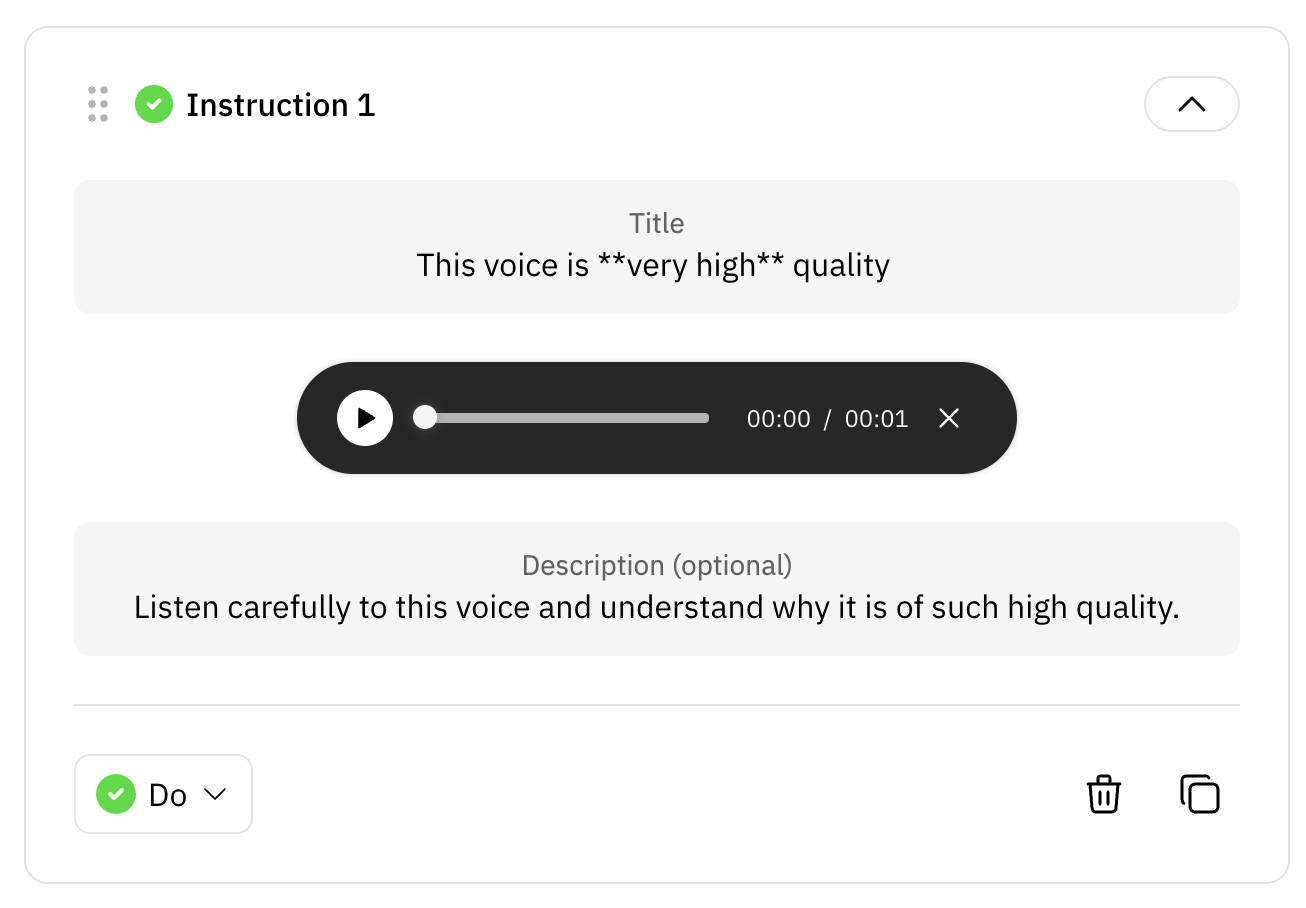
        You can also include detailed examples for clarity.
        <Frame>
          ![5-1-instruction-example.png](https://static-public.podonos.com/sdk/no-code-evaluation/5-1-instruction-example.png)
        </Frame>
      </Step>

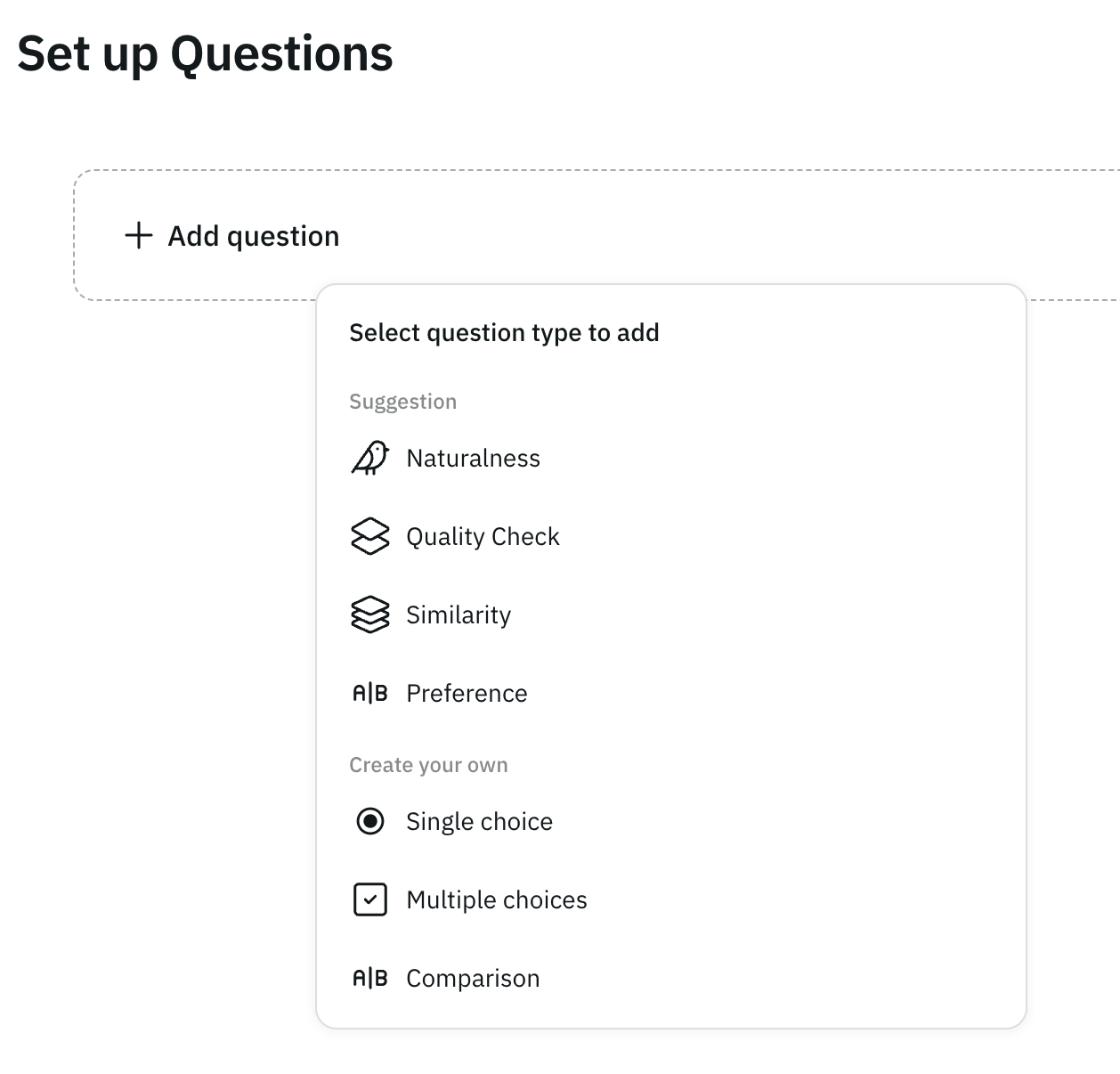
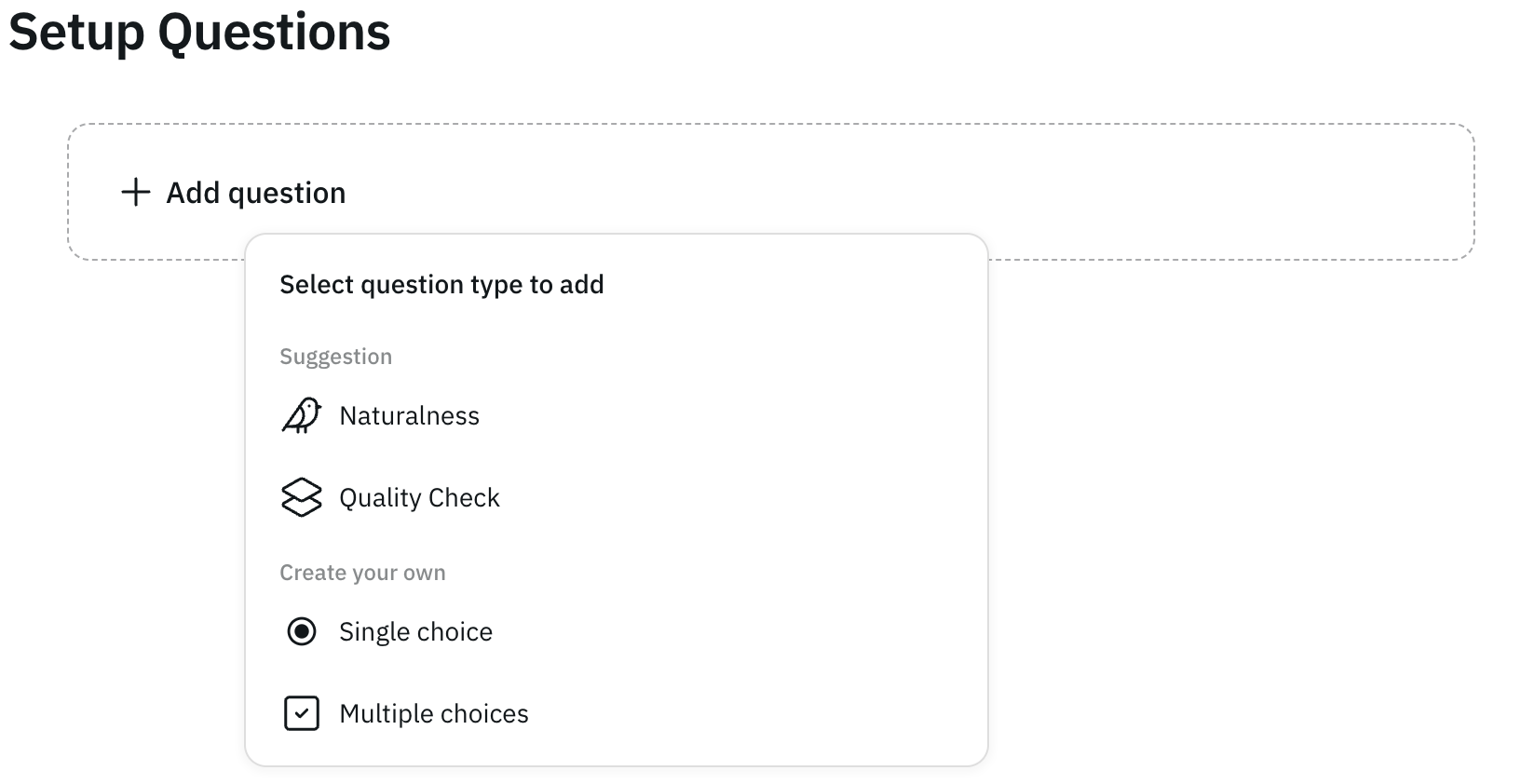
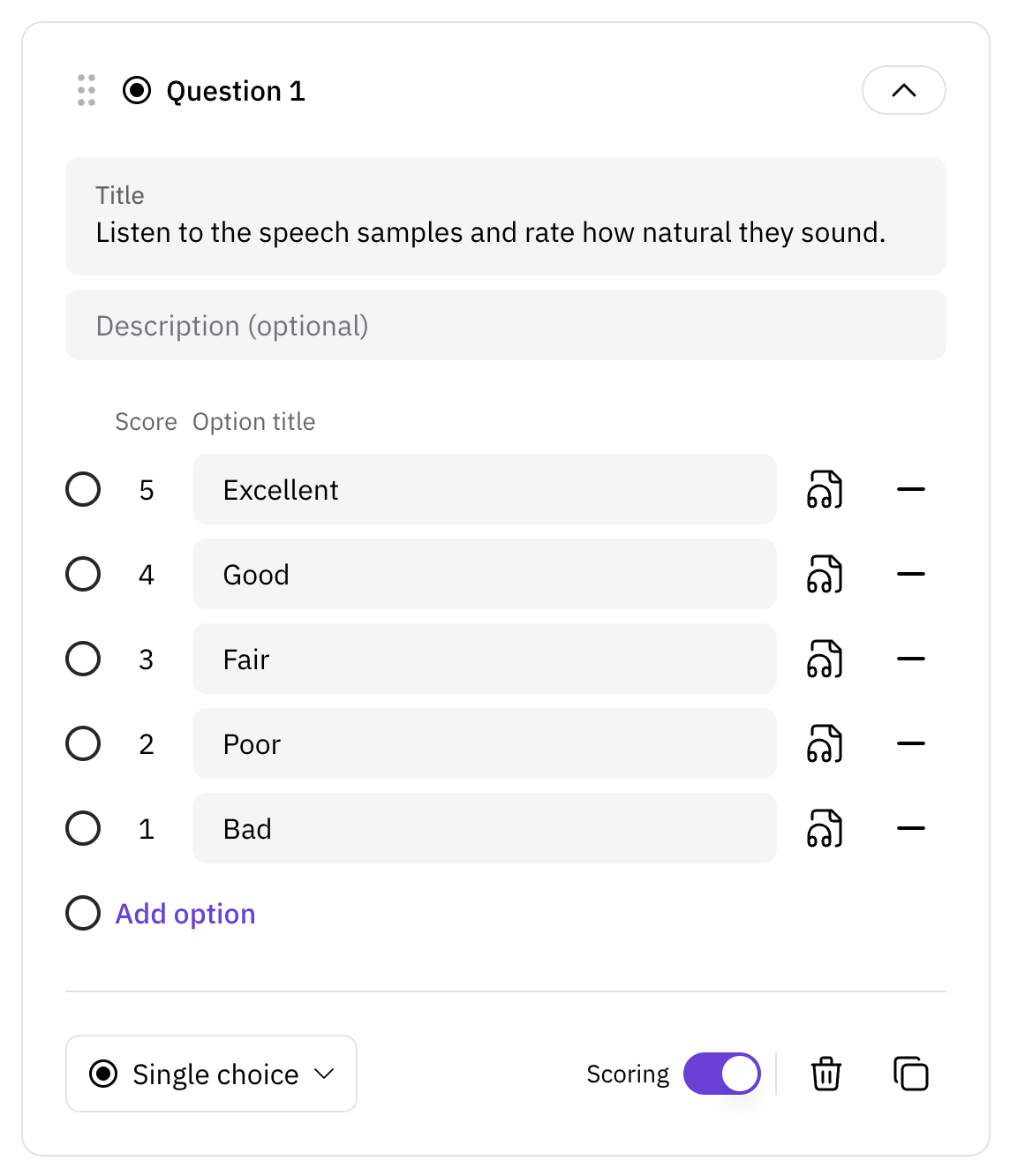
      <Step title="Set up Questions">
        Now, you can create questions for your evaluation. You can use pre-built
        templates or create your own questions. Click **Add question** to start
        customization.
        <Frame>
          ![setup-questions.png](https://static-public.podonos.com/docs/set-up-question-double.png)
        </Frame>

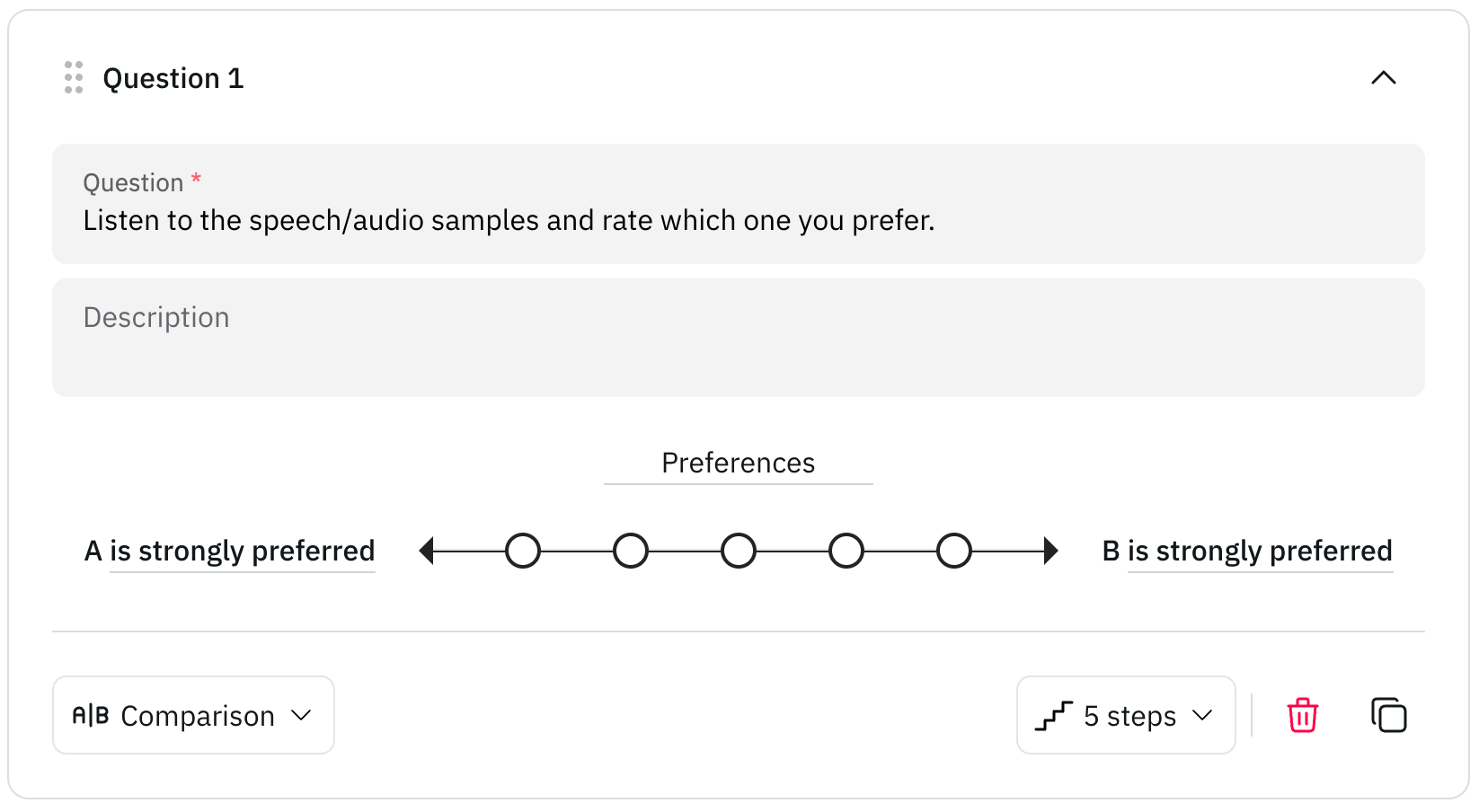
        Once added, you can further refine your custom questions:
        <Frame>
          ![comparison-question.png](https://static-public.podonos.com/docs/comparison-question.png)
        </Frame>
      </Step>

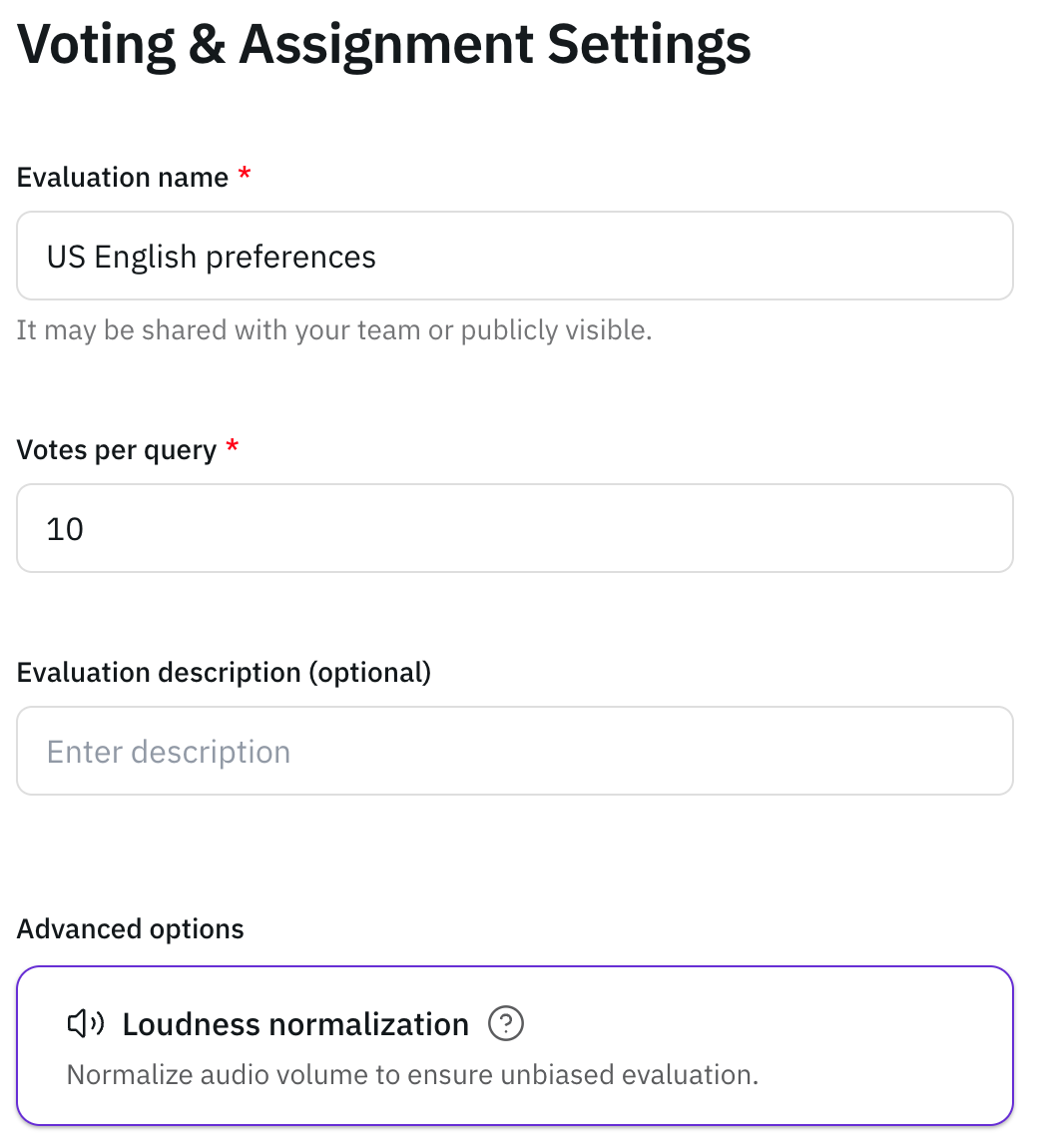
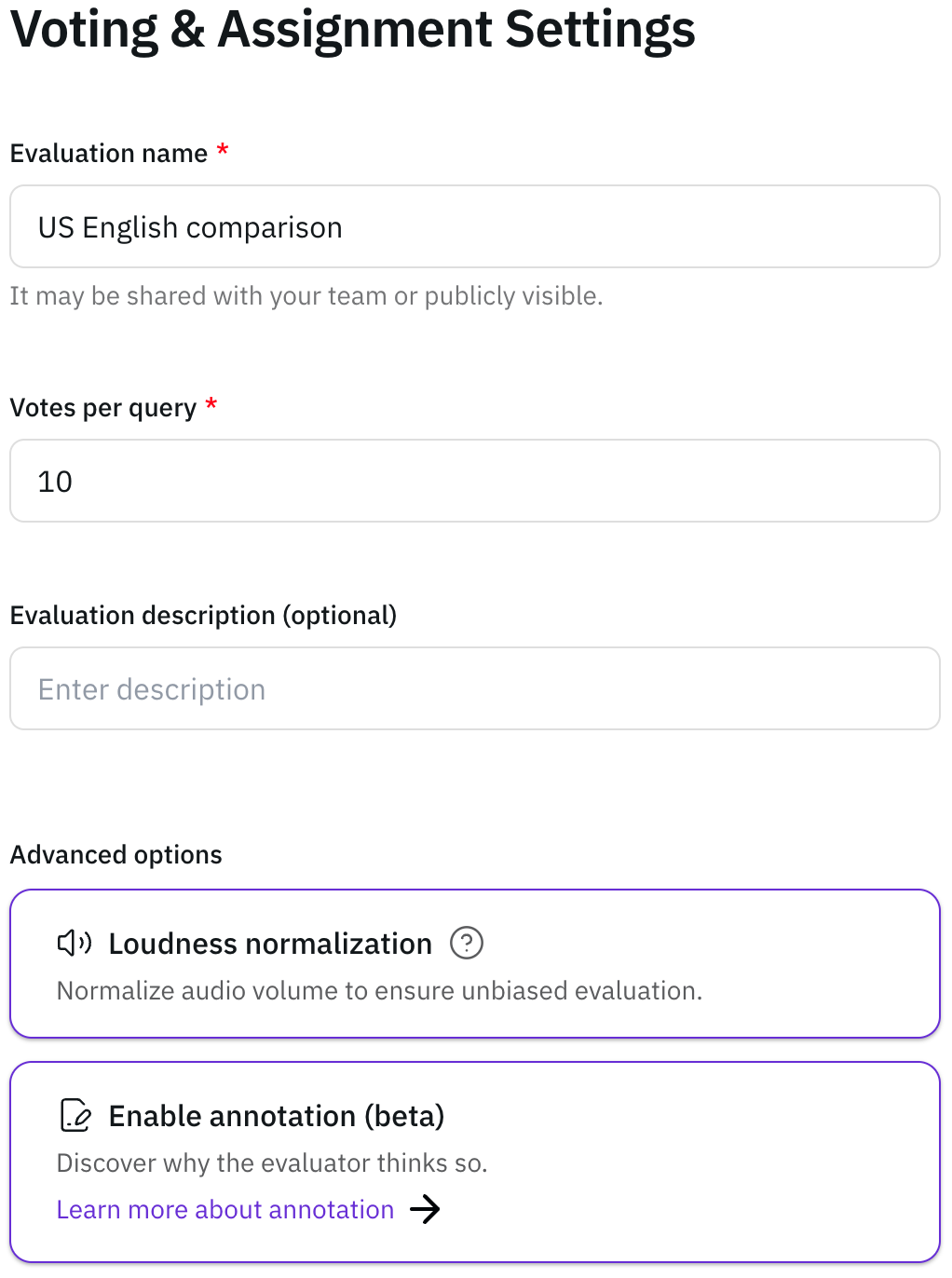
      <Step title="Set up voting and assignment settings">
        Fill in the basic information of a new evaluation, such as the title and a
        detailed description.
        <Frame>
          ![basic-info-double.png](https://static-public.podonos.com/docs/basic-info-double.png)
        </Frame>
      </Step>

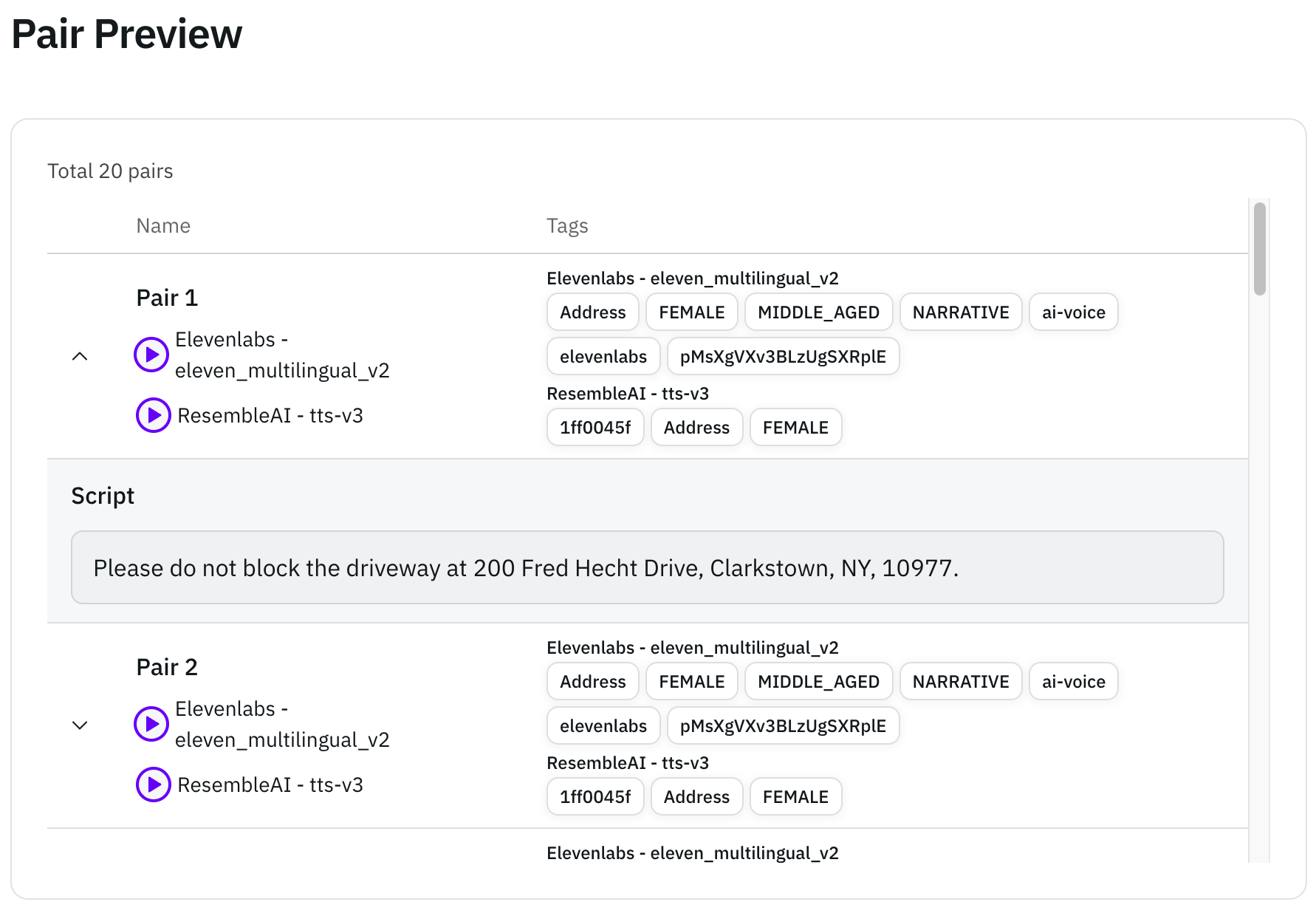
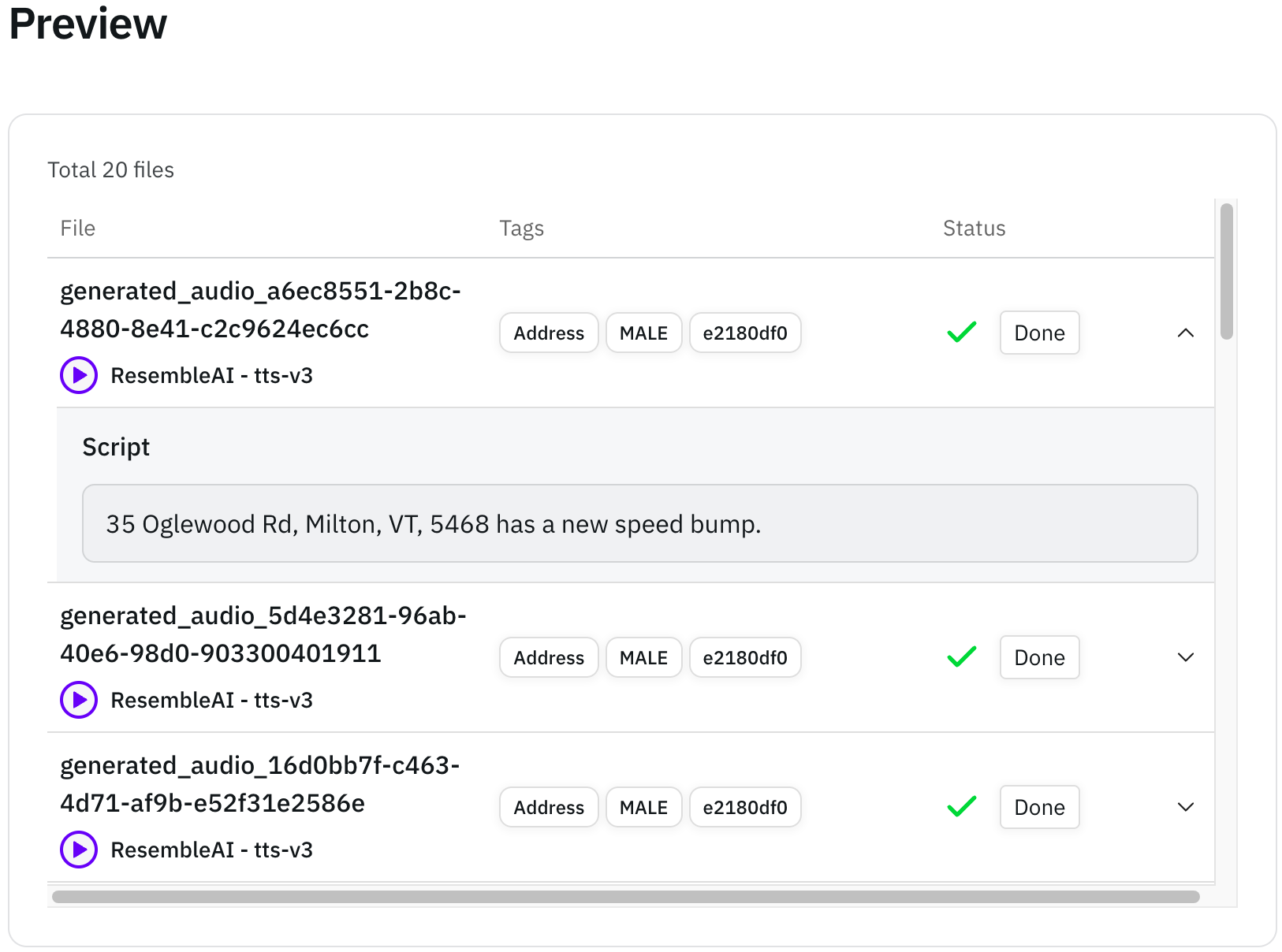
      <Step title="Review generated audio files">
        You can review the generated audio files on the Preview page.
        <Frame>
          ![audio-generation-preview.png](https://static-public.podonos.com/docs/audio-generation-preview.png)
        </Frame>

        <br />

        <Frame>
          ![pair-preview.png](https://static-public.podonos.com/docs/pair-preview.png)
        </Frame>
      </Step>

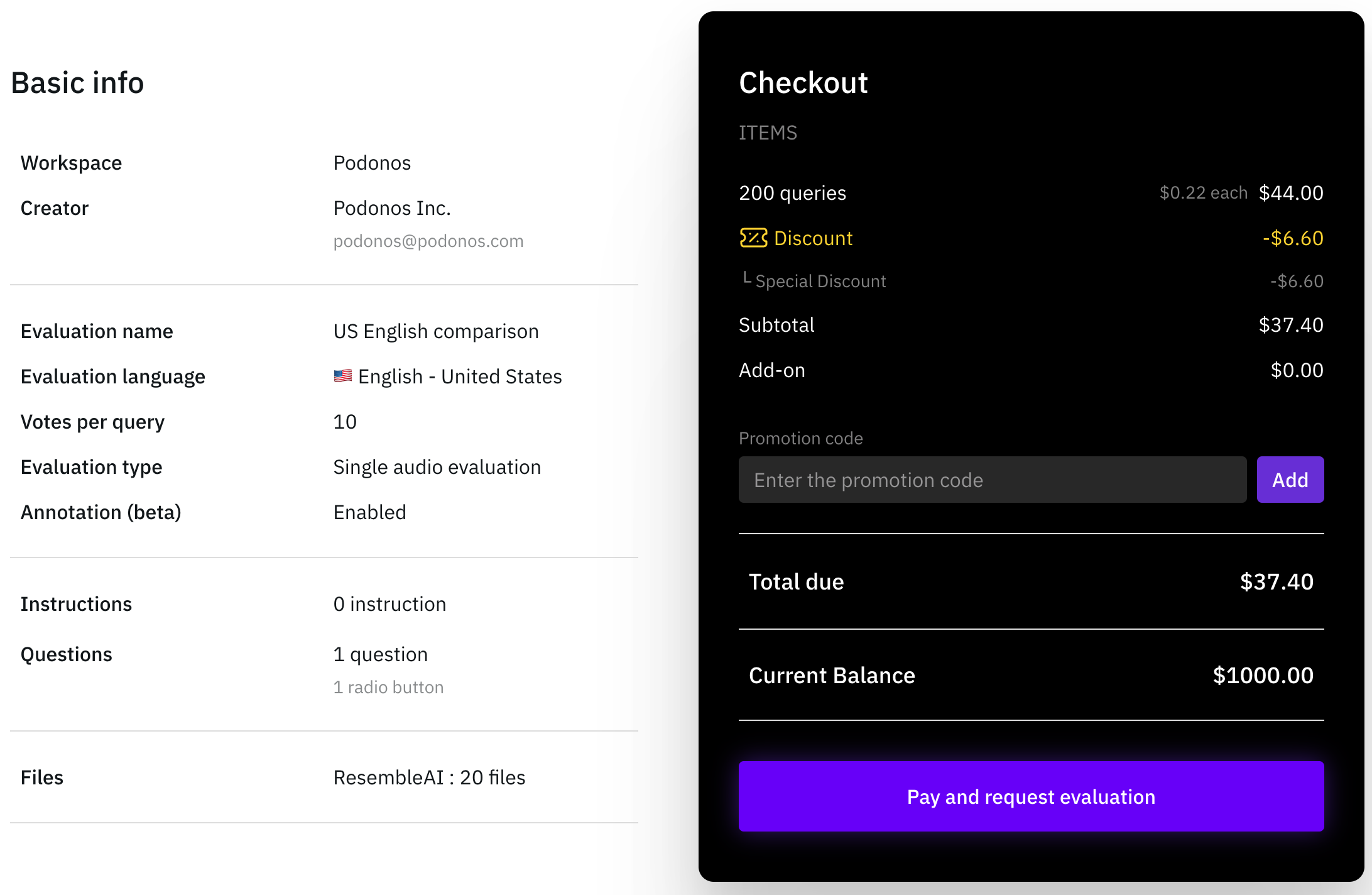
      <Step title="Review evaluation details">
        Review all the details of your evaluation on the summary page. Ensure that all
        the information is correct before confirmation.
        <Frame>
          ![summary-checkout.png](https://static-public.podonos.com/docs/summary-checkout.png)
        </Frame>

        If necessary, proceed to payment section to confirm your evaluation.
      </Step>

      <Step title="Request Complete and View Evaluation Results">
        Once you finish the final review, your evaluation request is confirmed.
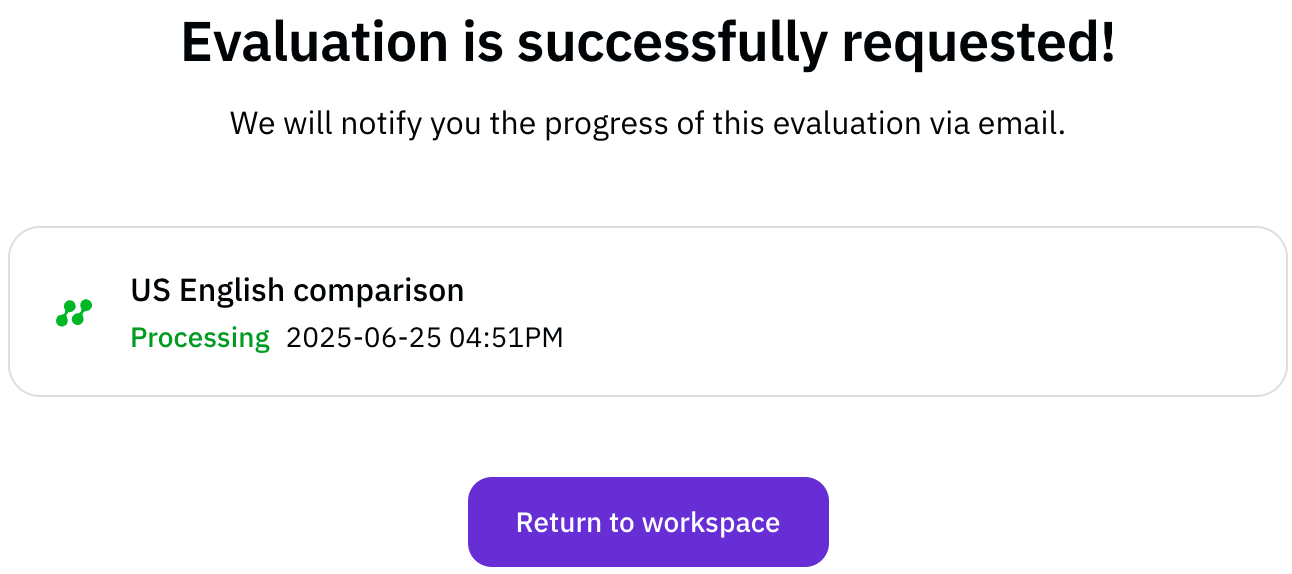
        <Frame>
          ![request-complete.png](https://static-public.podonos.com/docs/request-complete.png)
        </Frame>

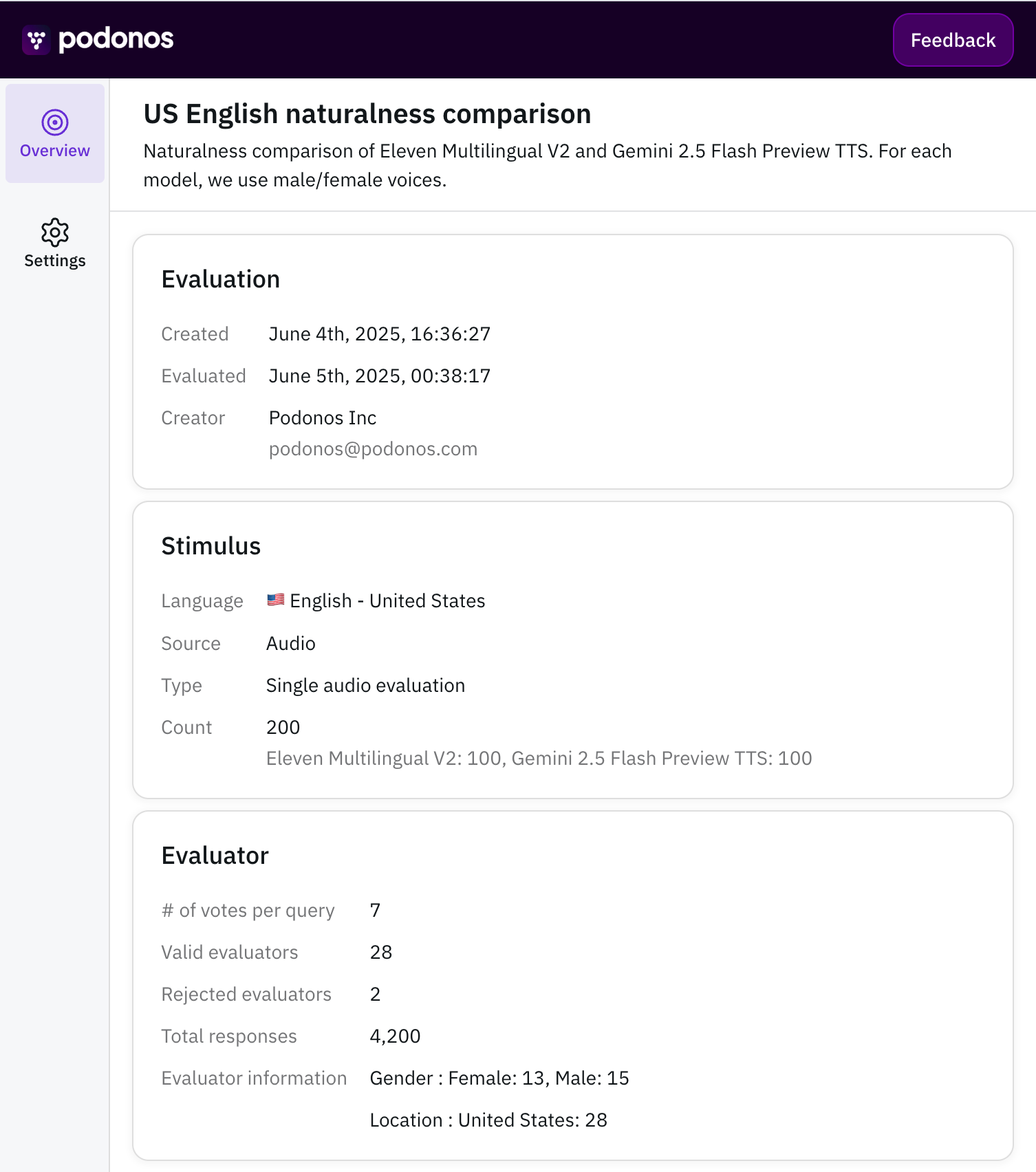
        You can view the details of your completed evaluation from the Workspace or
        through email.
        <Frame>
          ![eval-overview.png](https://static-public.podonos.com/docs/eval-overview.png)
        </Frame>
      </Step>
    </Steps>
  </Tab>
</Tabs>

<Note>
  Once your evaluation completes, a report will be automatically generated and
  you will be notified via email.
</Note>

#### Related documents

<CardGroup cols={2}>
  <Card title="Register Your Own API" icon="file-pen" href="/wizard-api-registration">
    Register and use your own voice AI model API instead of pre-built models
  </Card>

  <Card title="Use Custom Scripts" icon="file-lines" href="/wizard-custom-scripts">
    Upload and use your own scripts instead of the provided ones
  </Card>
</CardGroup>

These advanced features allow you to:

* Register your own voice synthesis models via API
* Upload your own custom scripts for evaluation
* Easily compare your models with other voice synthesis models