> ## Documentation Index
> Fetch the complete documentation index at: https://podonos.com/docs/llms.txt
> Use this file to discover all available pages before exploring further.

# API Registration

> How to register your own API in API-based evaluation

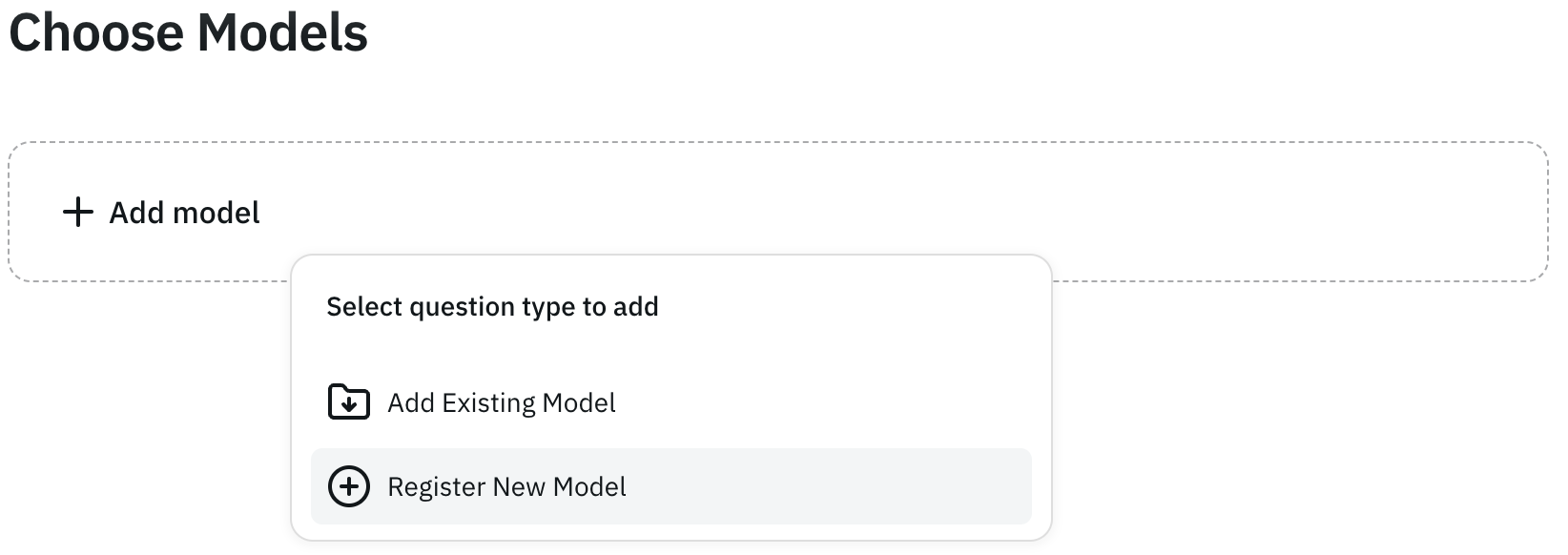
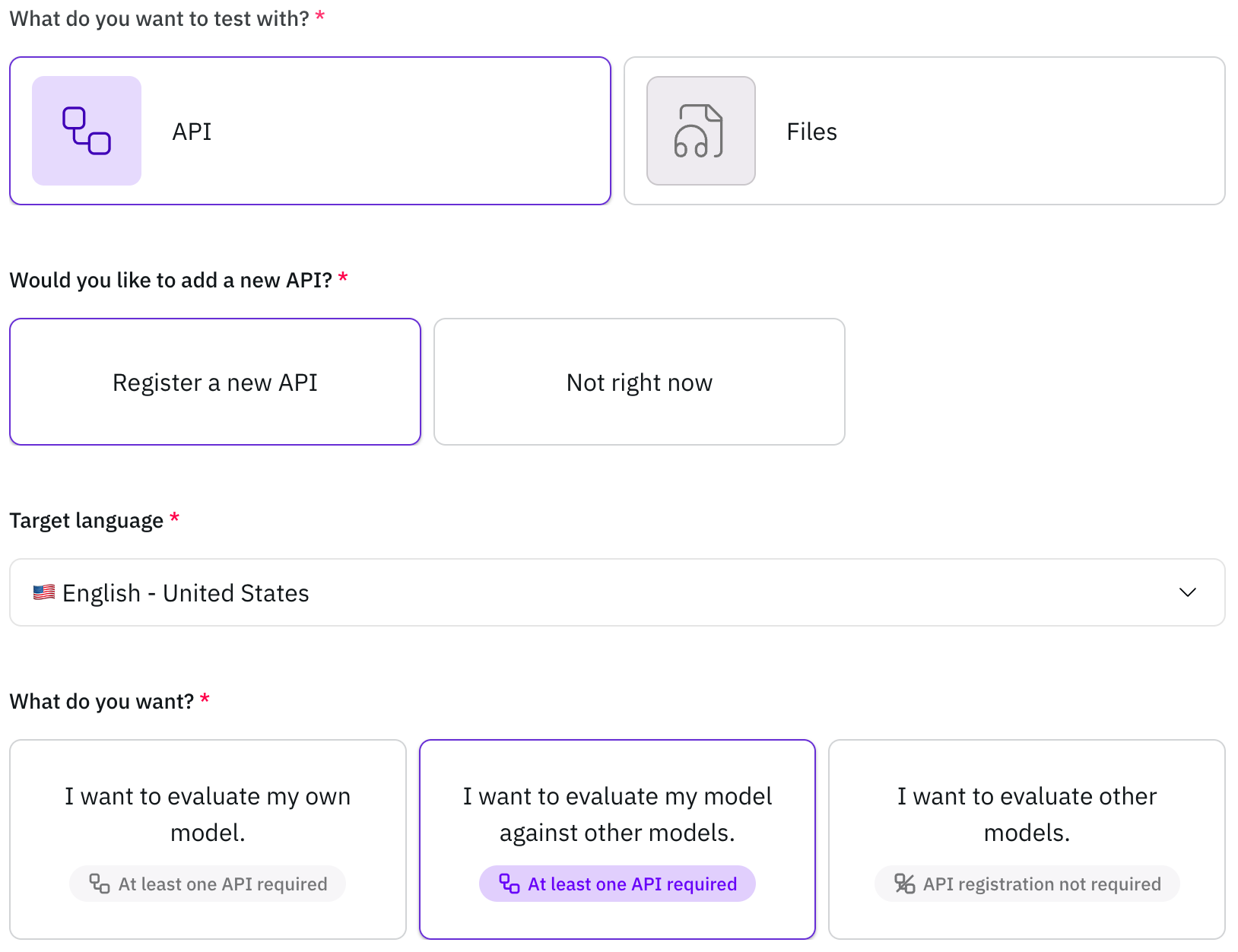
You can register your own voice AI model API and compare it with our provided APIs to evaluate model performance using the wizard.

<Warning>
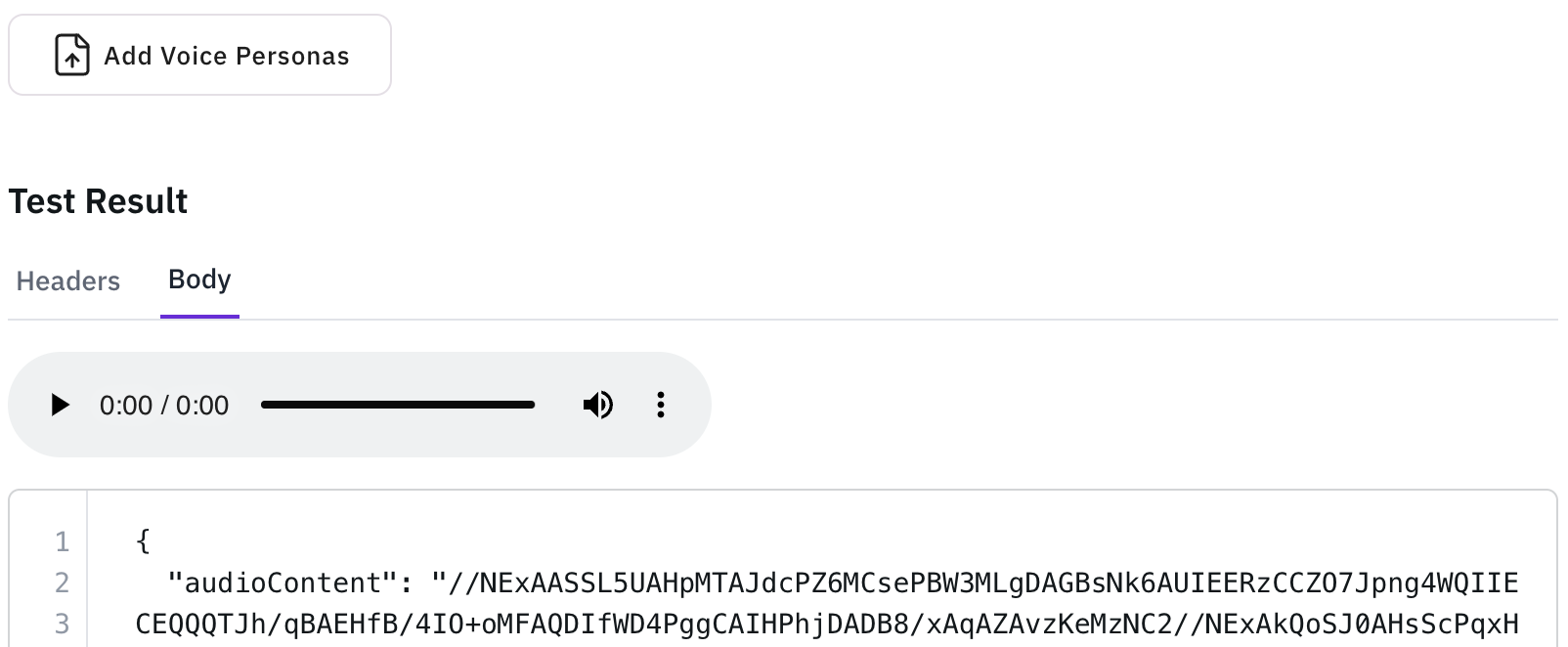
  Your API must return response data in one of the following formats:

  * Binary data (audio file)
  * JSON with base64-encoded audio file data stored in the `audioContent` field

    Example:

    ```json theme={null}
    {
      "audioContent": "//NEXAASSL5UAHpMTAJdcPZ6MCsePBW3MLg..."
    }
    ```
</Warning>

<Steps>
  <Step title="Click &#x22;Register new API&#x22;">
    <Frame>![easy-to-start-register-new-api.png](https://static-public.podonos.com/docs/easy-to-start-register-new-api.png)</Frame>

    <br />

    <Frame>![choose-model-register-new-api.png](https://static-public.podonos.com/docs/choose-model-register-new-api.png)</Frame>
  </Step>

  <Step title="Enter your API information">
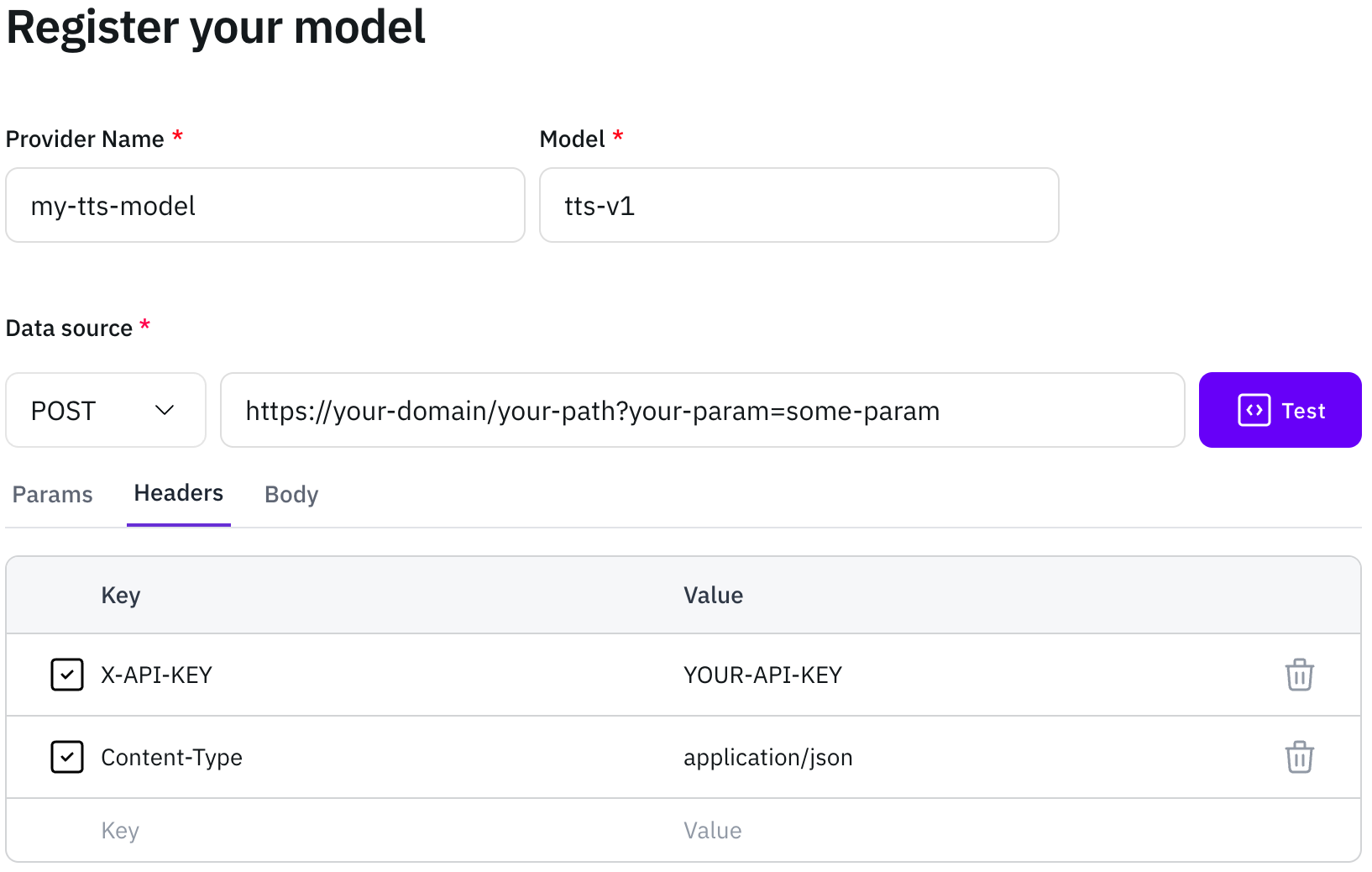
    Enter your API information (Provider name, Model name, API endpoint, HTTP method, HTTP headers, HTTP body)
    <Frame>
      ![model-registration-model-info.png](https://static-public.podonos.com/docs/model-registration-model-info.png)
    </Frame>

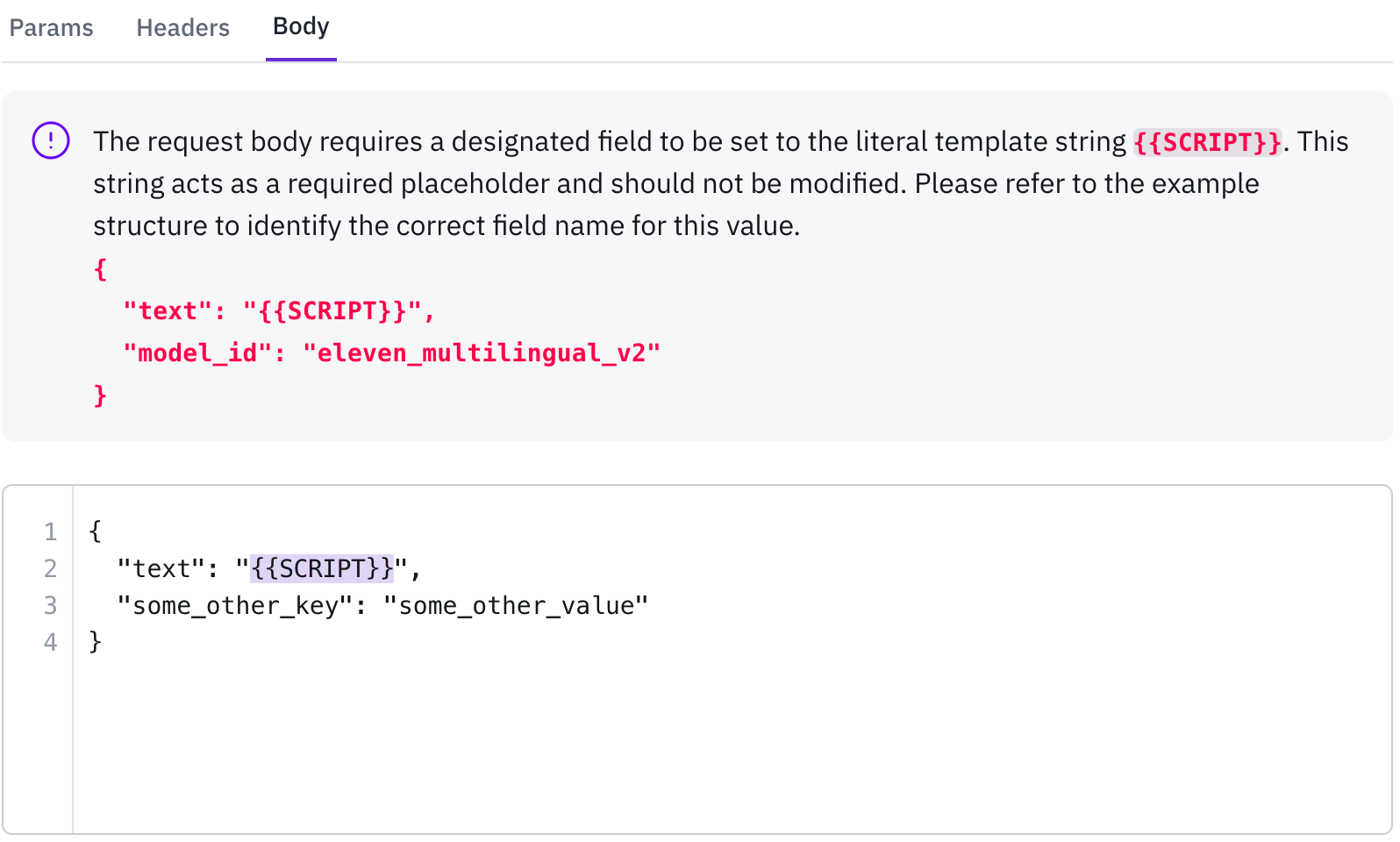
    For the HTTP body, you must include the template string `{{SCRIPT}}` in the script input field.
    <Frame>
      ![model-registration-body.png](https://static-public.podonos.com/docs/model-registration-body.png)
    </Frame>
  </Step>

  <Step title="Click the Test button">
    Click the **Test** button to verify that your API is functioning correctly and returning the [expected response](#).
  </Step>

  <Step title="Click &#x22;Add voice persona&#x22;">
    Click **Add voice persona** to register the voices and their information that your model supports.
    <Frame>
      ![model-registration-model-test-result.png](https://static-public.podonos.com/docs/model-registration-model-test-result.png)
    </Frame>
  </Step>

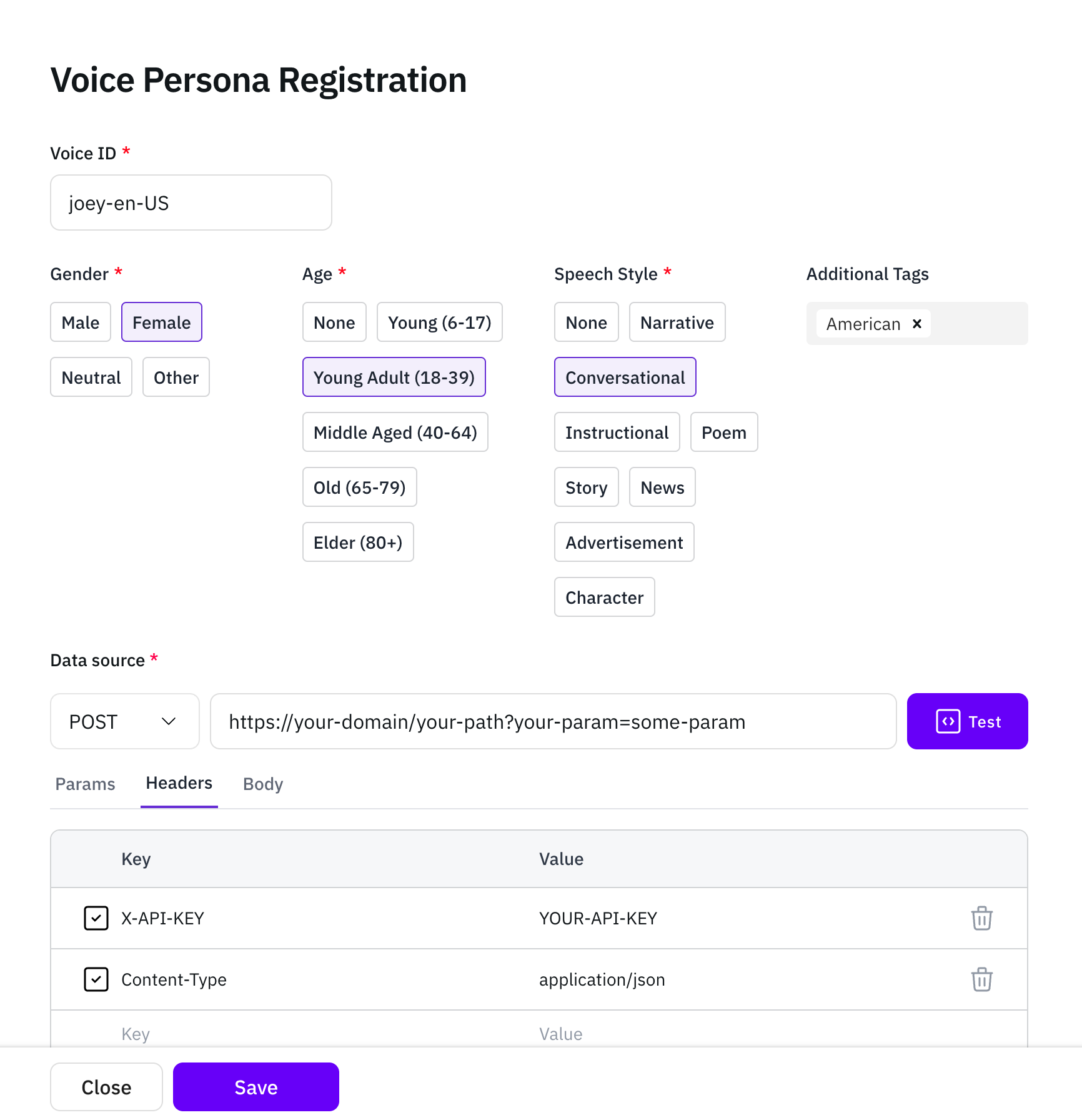
  <Step title="Fill in the voice information">
    Fill in the voice information (Voice ID, Gender, Age, Speech style, Additional tags)
    <Frame>
      ![model-registration-voice.png](https://static-public.podonos.com/docs/model-registration-voice.png)
    </Frame>
  </Step>

  <Step title="Click the Test button again">
    Click the **Test** button again to confirm the API is functioning, then click Save to store your configuration.

    <Frame>
      ![model-registration-saved-voice-button.png](https://static-public.podonos.com/docs/model-registration-saved-voice-button.png)
    </Frame>
  </Step>

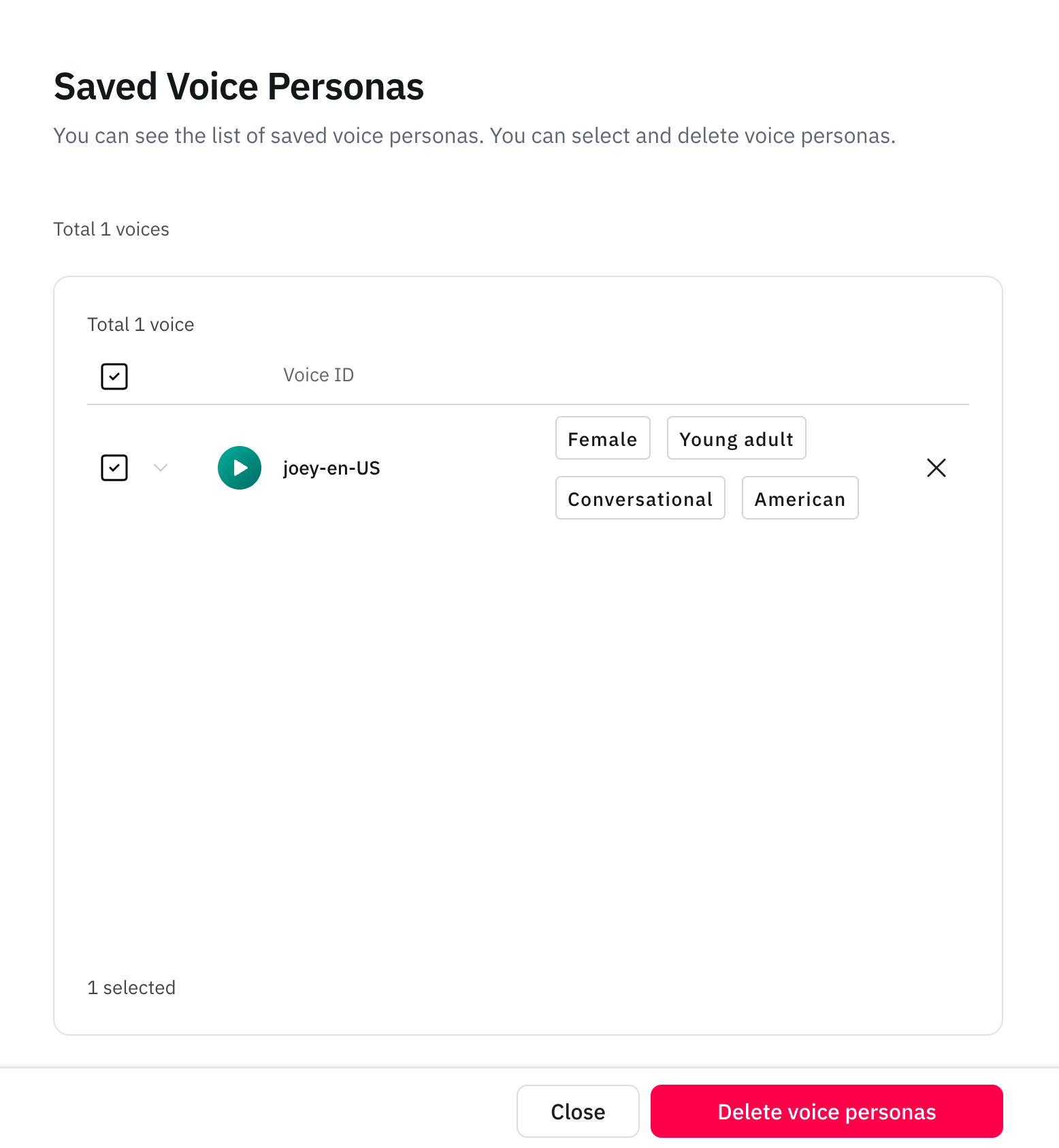
  <Step title="Click &#x22;See saved voices&#x22;">
    Click **See saved voices** to review all the voices you've saved so far.
    <Frame>
      ![model-registration-saved-voice.png](https://static-public.podonos.com/docs/model-registration-saved-voice.png)
    </Frame>
  </Step>

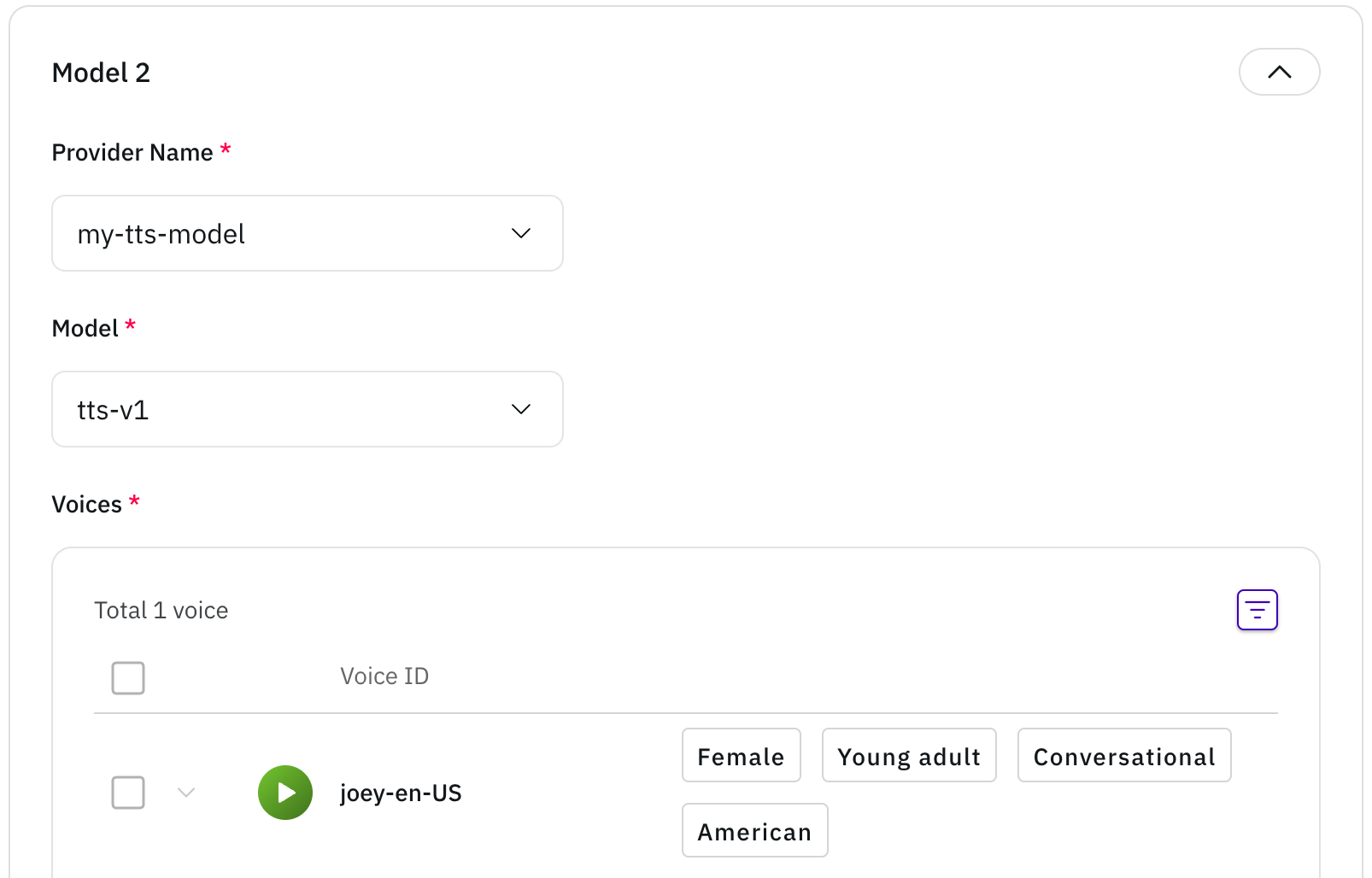
  <Step title="Click Next and choose model">
    Click **Next** to navigate to the **Choose model** page, where you can select your newly registered API.
    <Frame>
      ![model-registration-choose-model.png](https://static-public.podonos.com/docs/model-registration-choose-model.png)
    </Frame>
  </Step>
</Steps>

That's it! You can now create evaluations using your own API.