> ## Documentation Index
> Fetch the complete documentation index at: https://podonos.com/docs/llms.txt
> Use this file to discover all available pages before exploring further.

# File-based Evaluation

> Start evaluations without a single line of code

You can create/manage evaluations on SDK. But, you can do so on the workspace. Here is how to create and manage your evaluations.

<Steps>
  <Step title="Log in to Workspace" />

  <Step title="Create a New Evaluation">
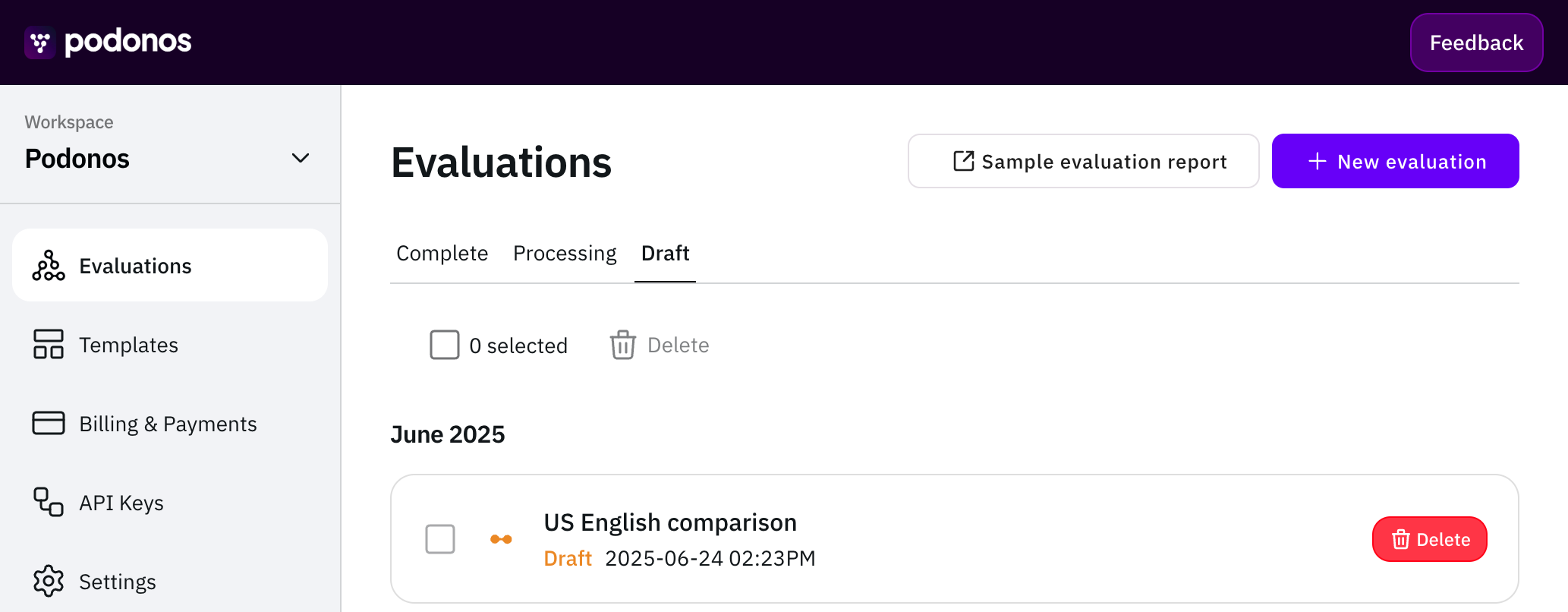
    Go to the **Evaluations** page and click **+ New evaluation**.
    <Frame>
      ![workspace-draft.png](https://static-public.podonos.com/docs/workspace-draft.png)
    </Frame>
  </Step>

  <Step title="Make your selection">
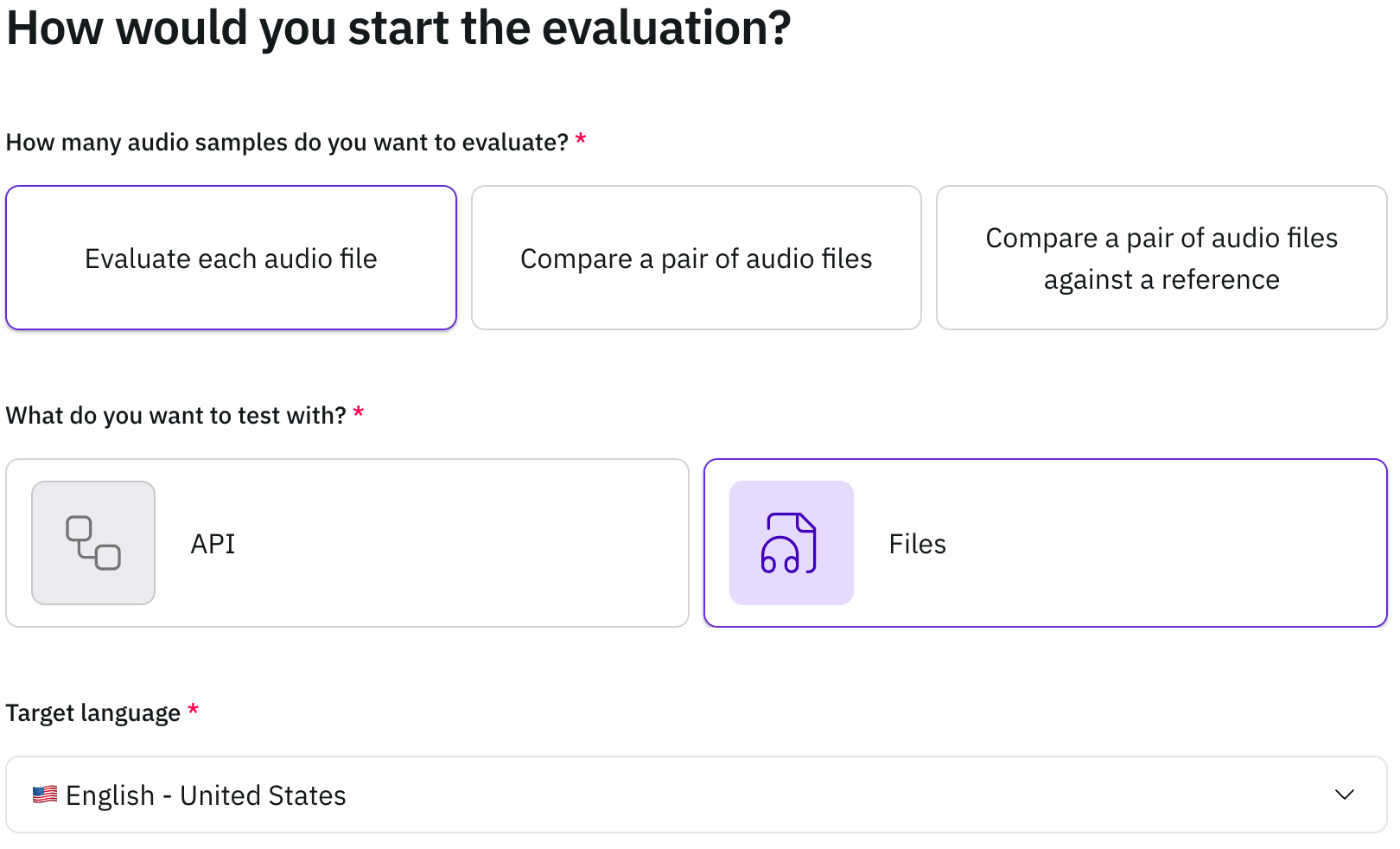
    Choose how you'd like to create your new evaluation.
    <Frame>
      ![easy-to-start-file.png](https://static-public.podonos.com/docs/easy-to-start-file.png)
    </Frame>
  </Step>

  <Step title="Set up voting and assignment settings">
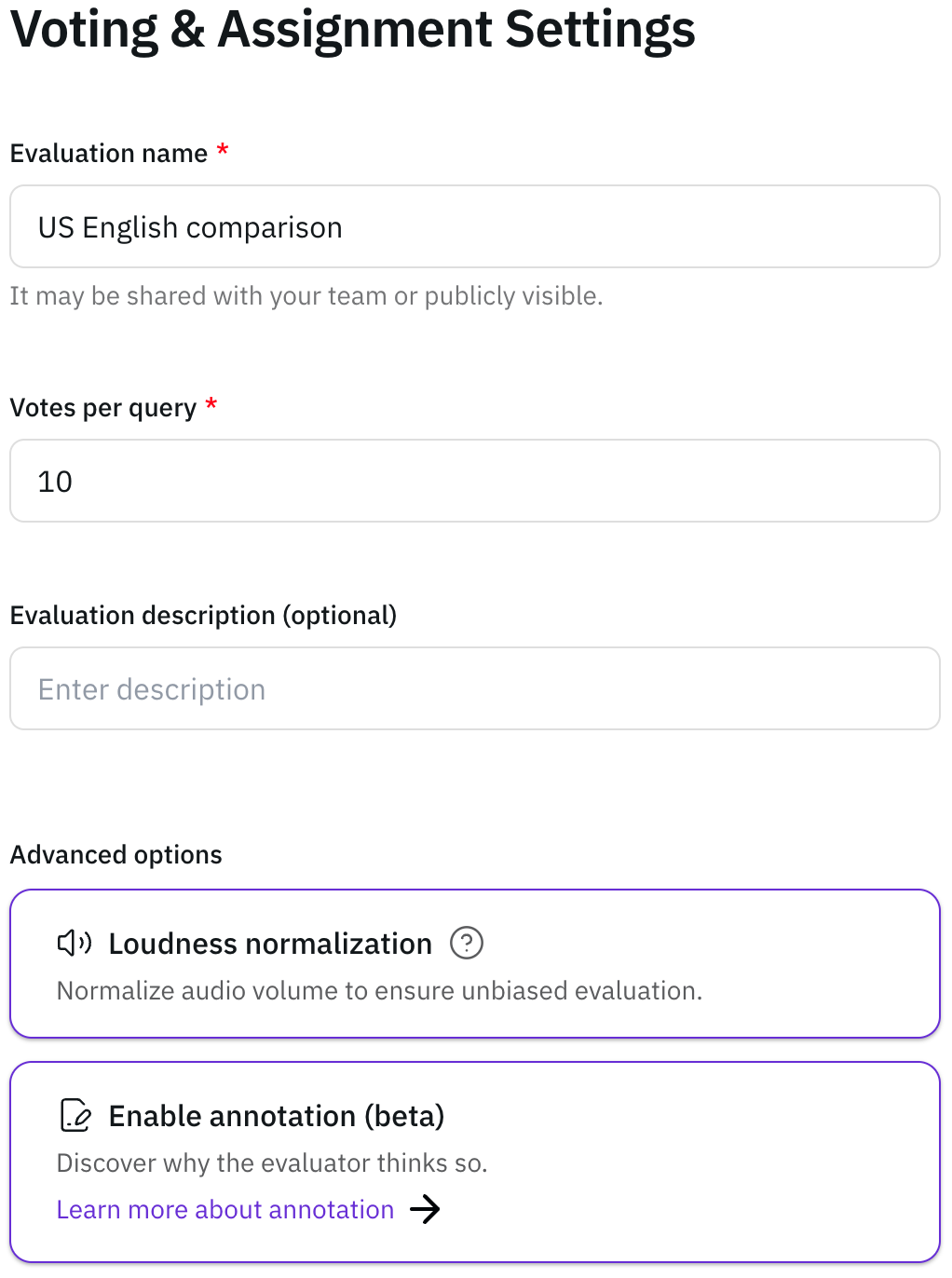
    Fill in the basic information of a new evaluation, such as the title and a
    detailed description.
    <Frame>
      ![voting-and-assignment-setting.png](https://static-public.podonos.com/docs/voting-and-assignment-setting.png)
    </Frame>
  </Step>

  <Step title="Set up Instructions">
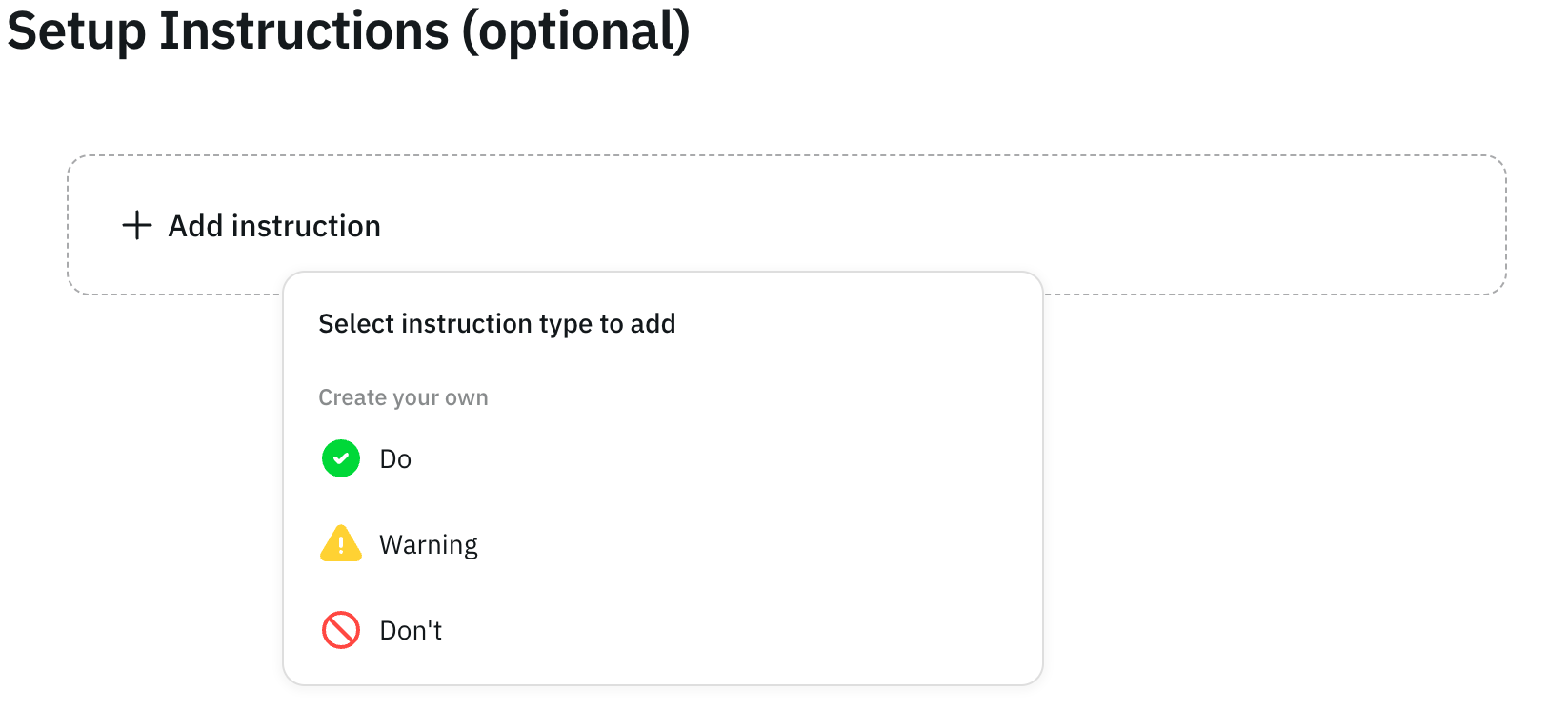
    Choose an instruction type (**Do**, **Warning**, or **Don't**) and provide
    clear guidance to help participants complete the evaluation effectively.
    <Frame>
      ![5-create-instruction.png](https://static-public.podonos.com/docs/setup-instructions.png)
    </Frame>

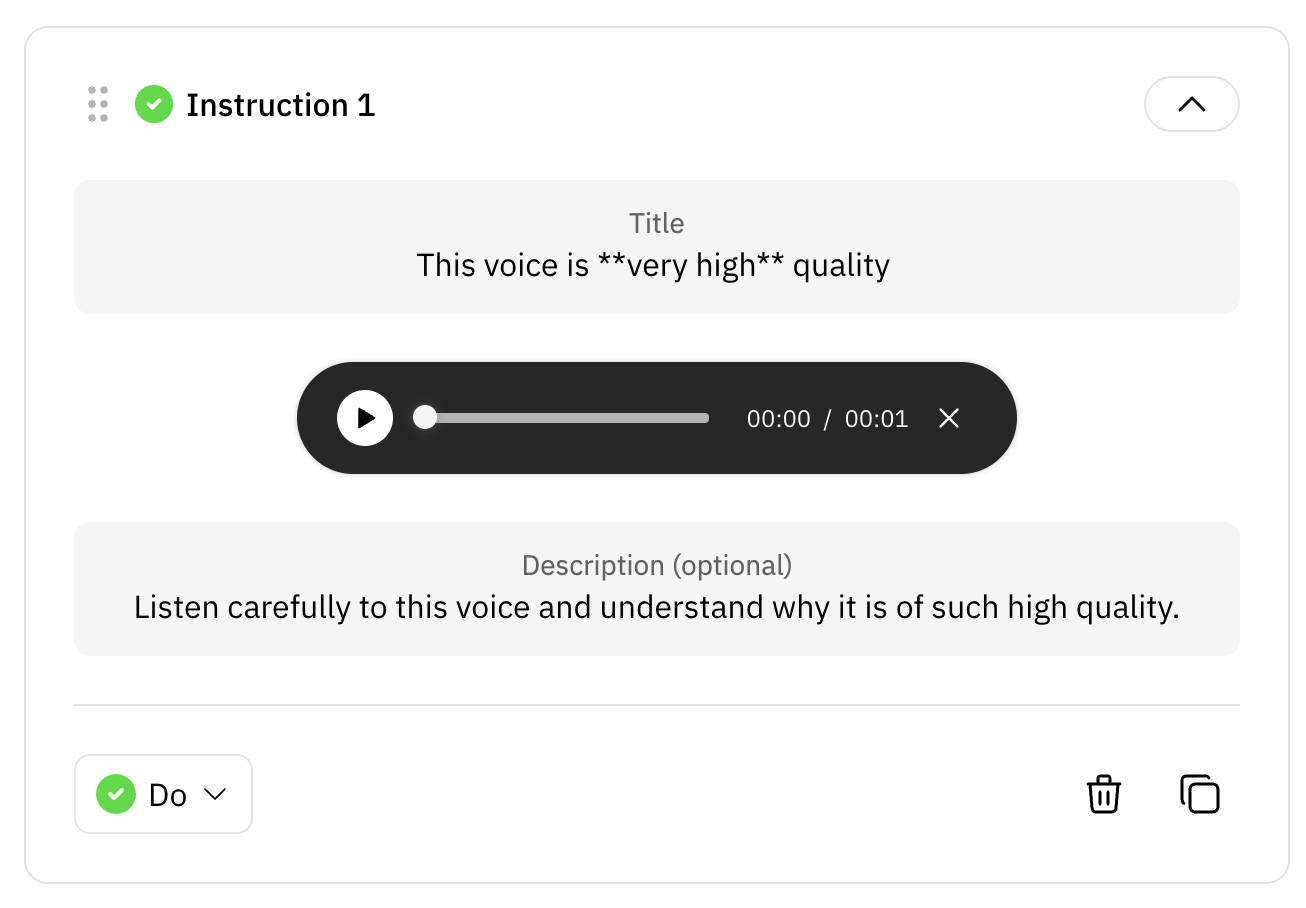
    You can also include detailed examples for clarity.
    <Frame>
      ![5-1-instruction-example.png](https://static-public.podonos.com/sdk/no-code-evaluation/5-1-instruction-example.png)
    </Frame>
  </Step>

  <Step title="Set up Questions">
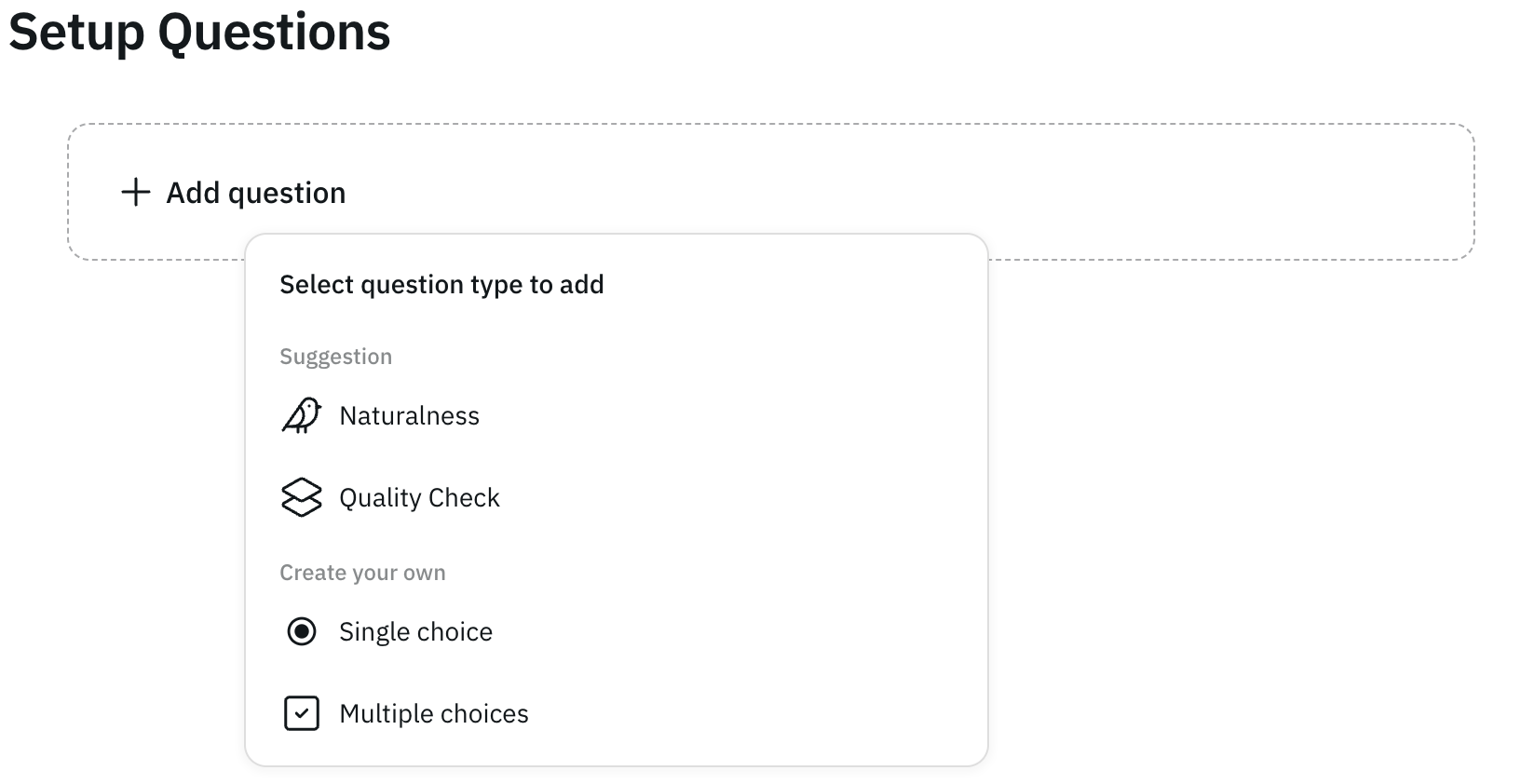
    Now, you can create questions for your evaluation. You can use pre-built
    templates or create your own questions. Click **Add question** to start
    customization.
    <Frame>
      ![setup-questions.png](https://static-public.podonos.com/docs/setup-questions.png)
    </Frame>

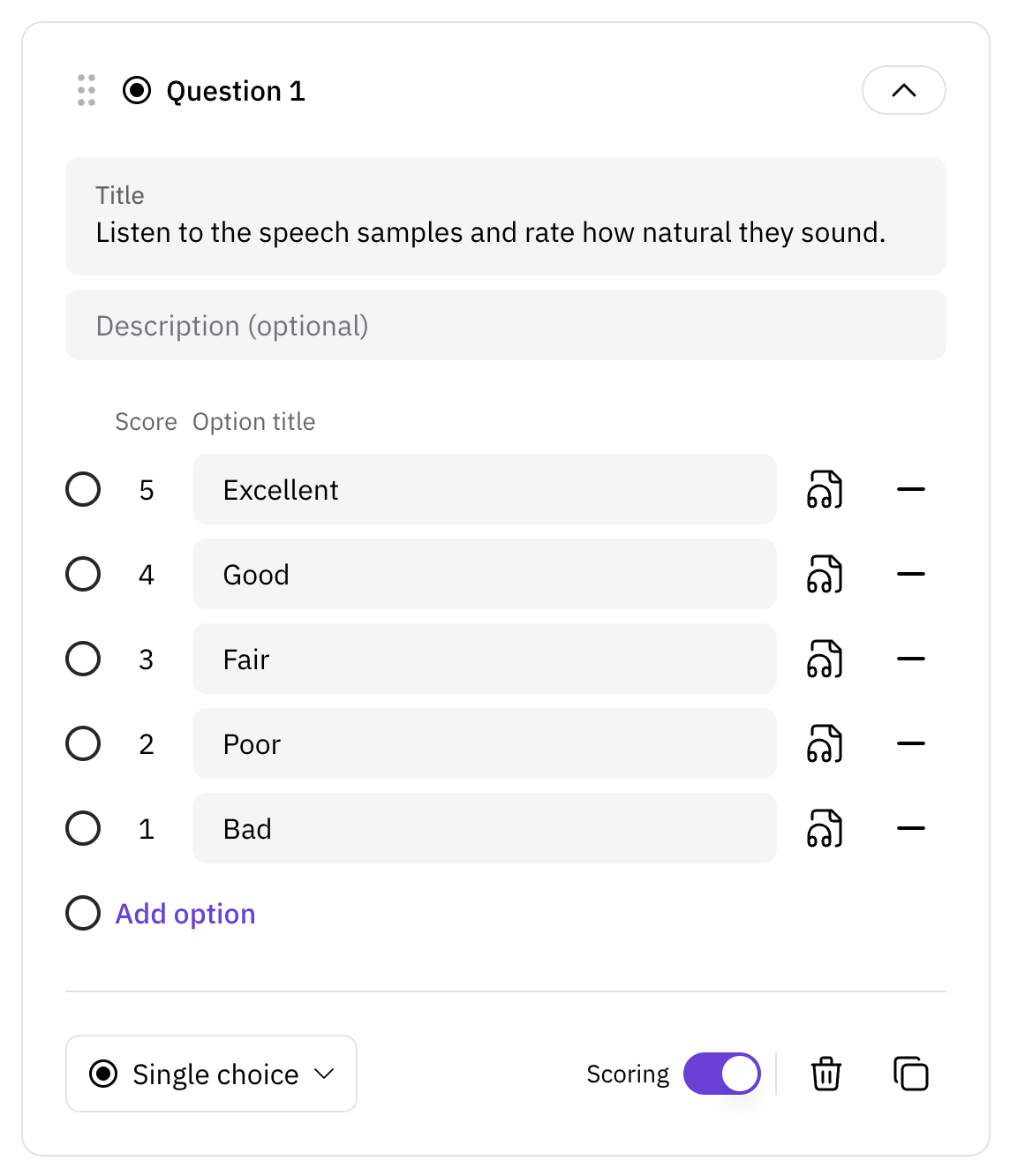
    Once added, you can further refine your custom questions:
    <Frame>
      ![6-1-create-custom-query.png](https://static-public.podonos.com/sdk/no-code-evaluation/6-1-create-custom-query.png)
    </Frame>
  </Step>

  <Step title="Upload Files and Add tags">
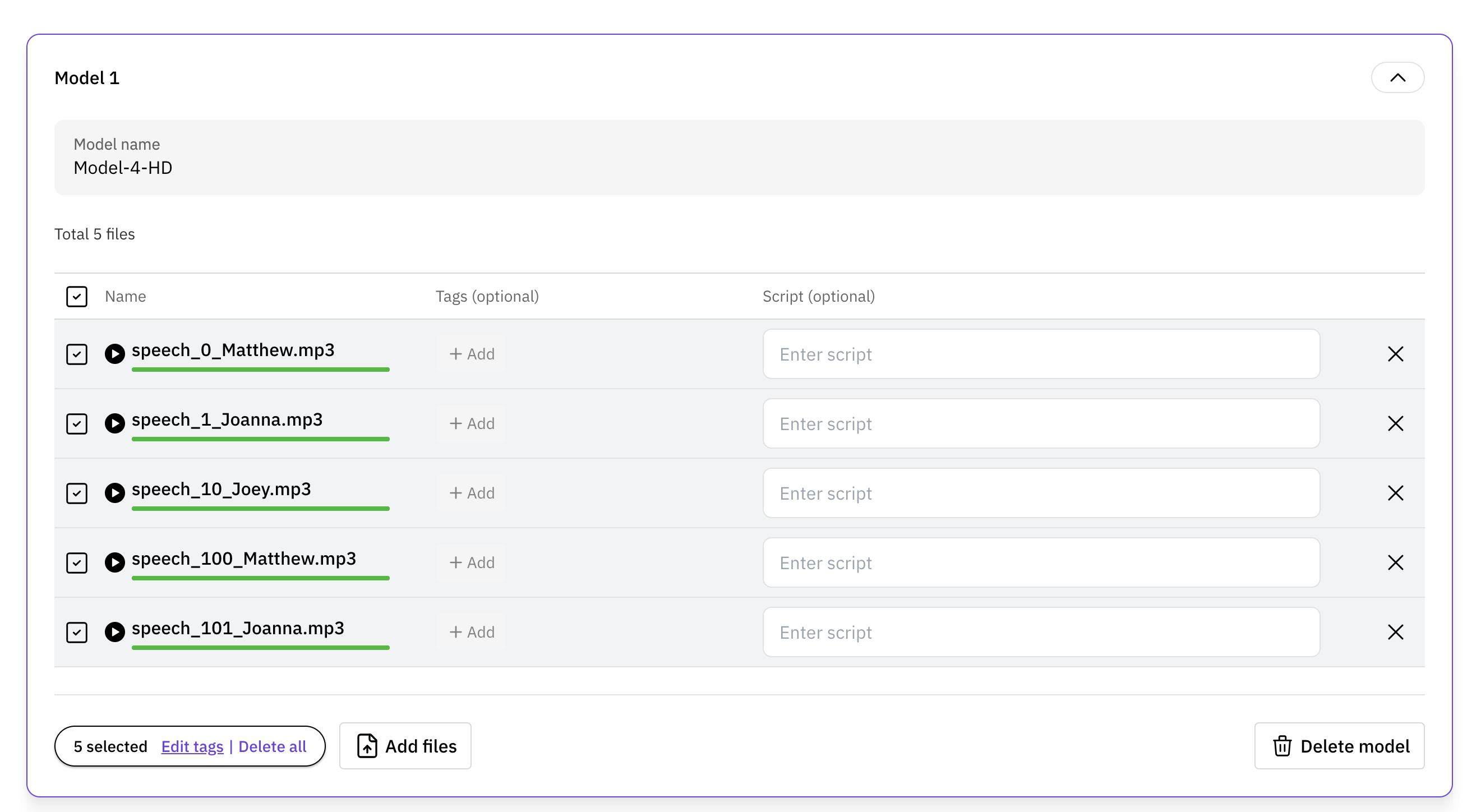
    Upload the necessary audio files for your evaluation. Type **model name**.
    This name may be your AI model's name or any unique name. Once the evaluation
    is done, you will see mulitple statistical analysis of the evaluation targets
    per model name and tags.
    <Frame>
      ![7-1-modify-file-tag.png](https://static-public.podonos.com/sdk/no-code-evaluation/7-1-modify-file-tag.png)
    </Frame>

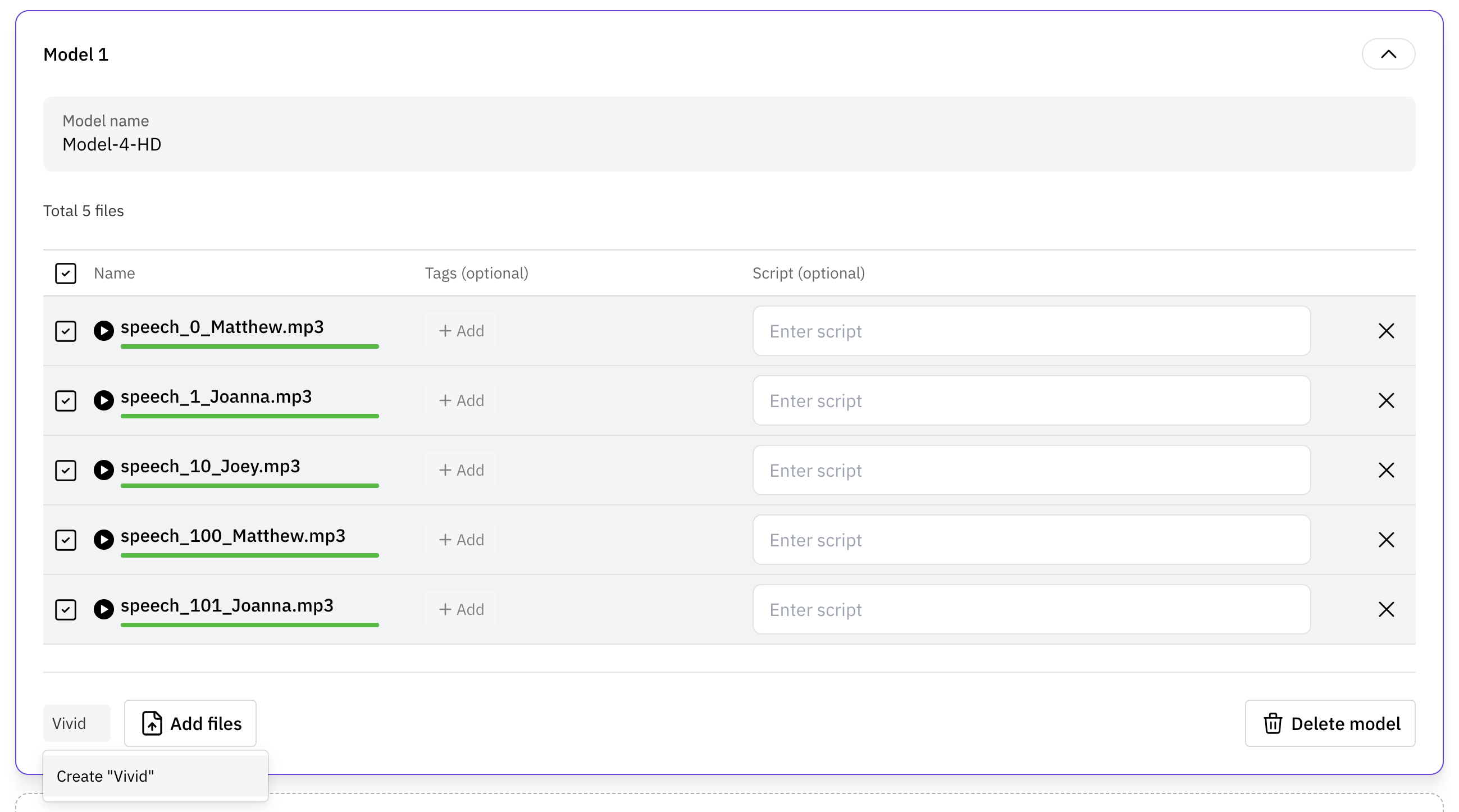
    Assign tags to your files using the tagging interface. Tags help organize your
    files and enable detailed analysis by tag categories.
    <Frame>
      ![7-2-file-tag-create.png](https://static-public.podonos.com/sdk/no-code-evaluation/7-2-file-tag-create.png)
    </Frame>

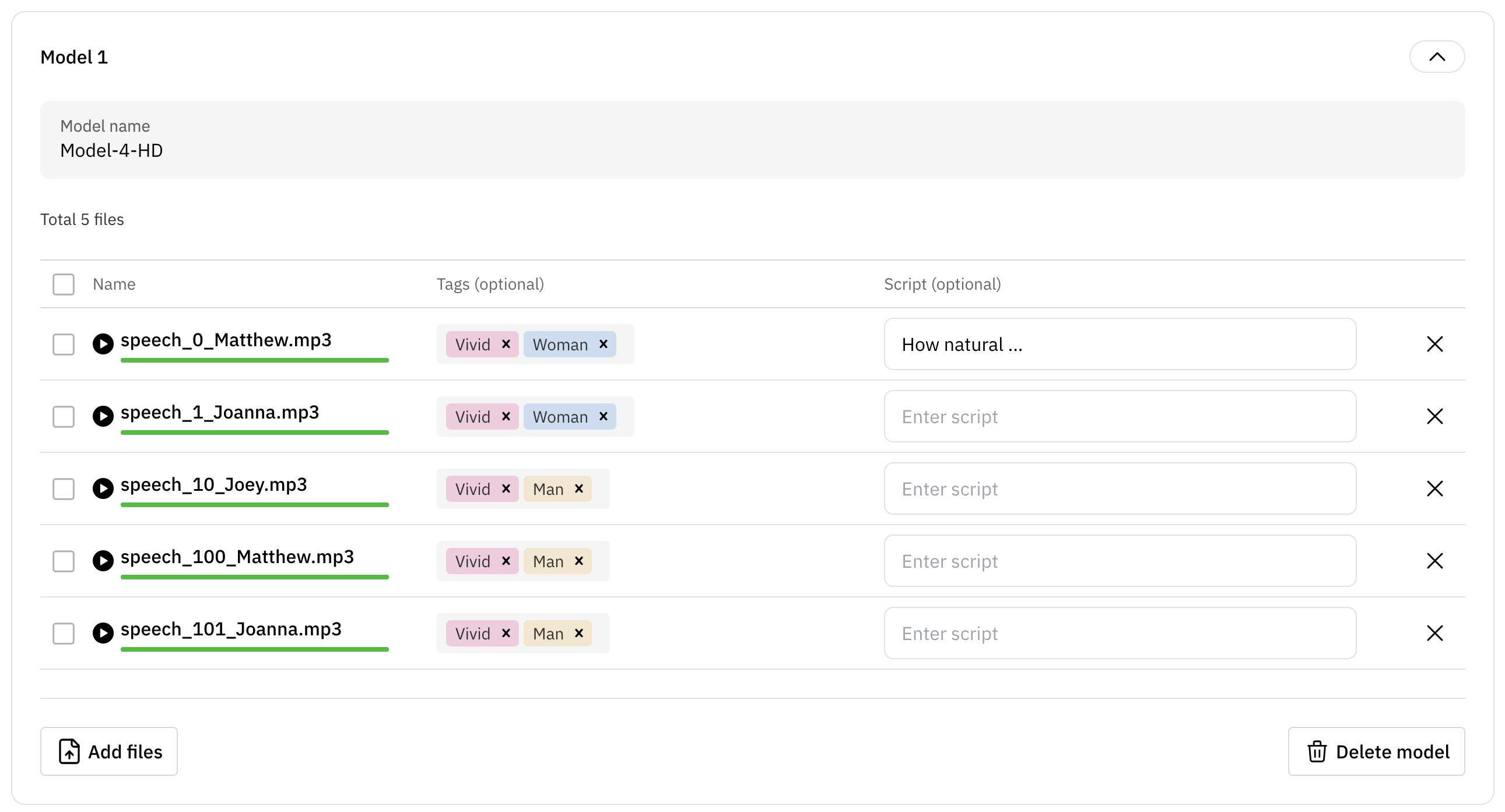
    After tagging, your files will be ready for use in the evaluation.
    <Frame>
      ![7-3-file-tag-complete.png](https://static-public.podonos.com/sdk/no-code-evaluation/7-3-file-tag-complete.png)
    </Frame>

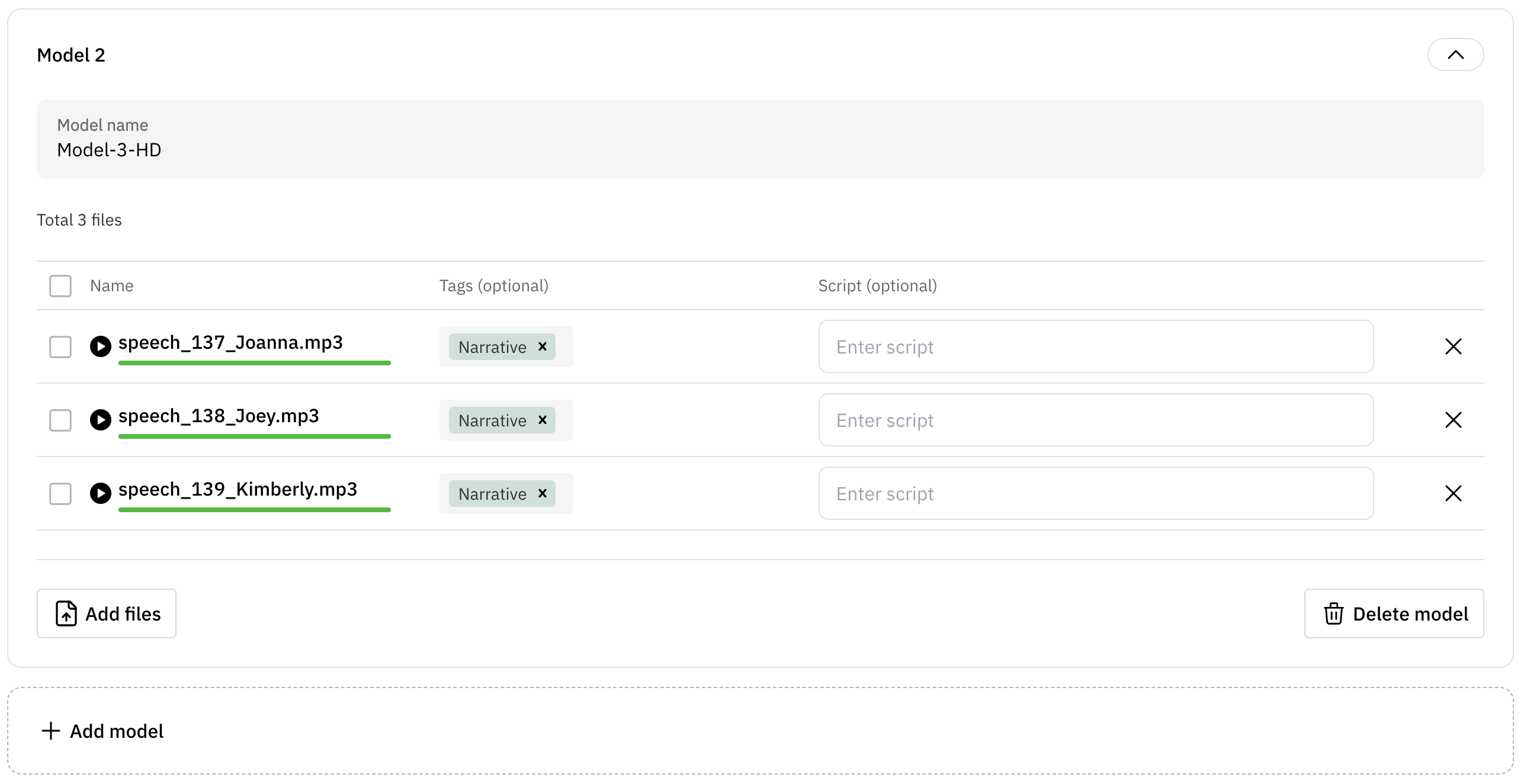
    If needed, you can add more files and tag them accordingly.
    <Frame>
      ![7-4-add-another-file-model.png](https://static-public.podonos.com/sdk/no-code-evaluation/7-4-add-another-file-model.png)
    </Frame>
  </Step>

  <Step title="Review evaluation details">
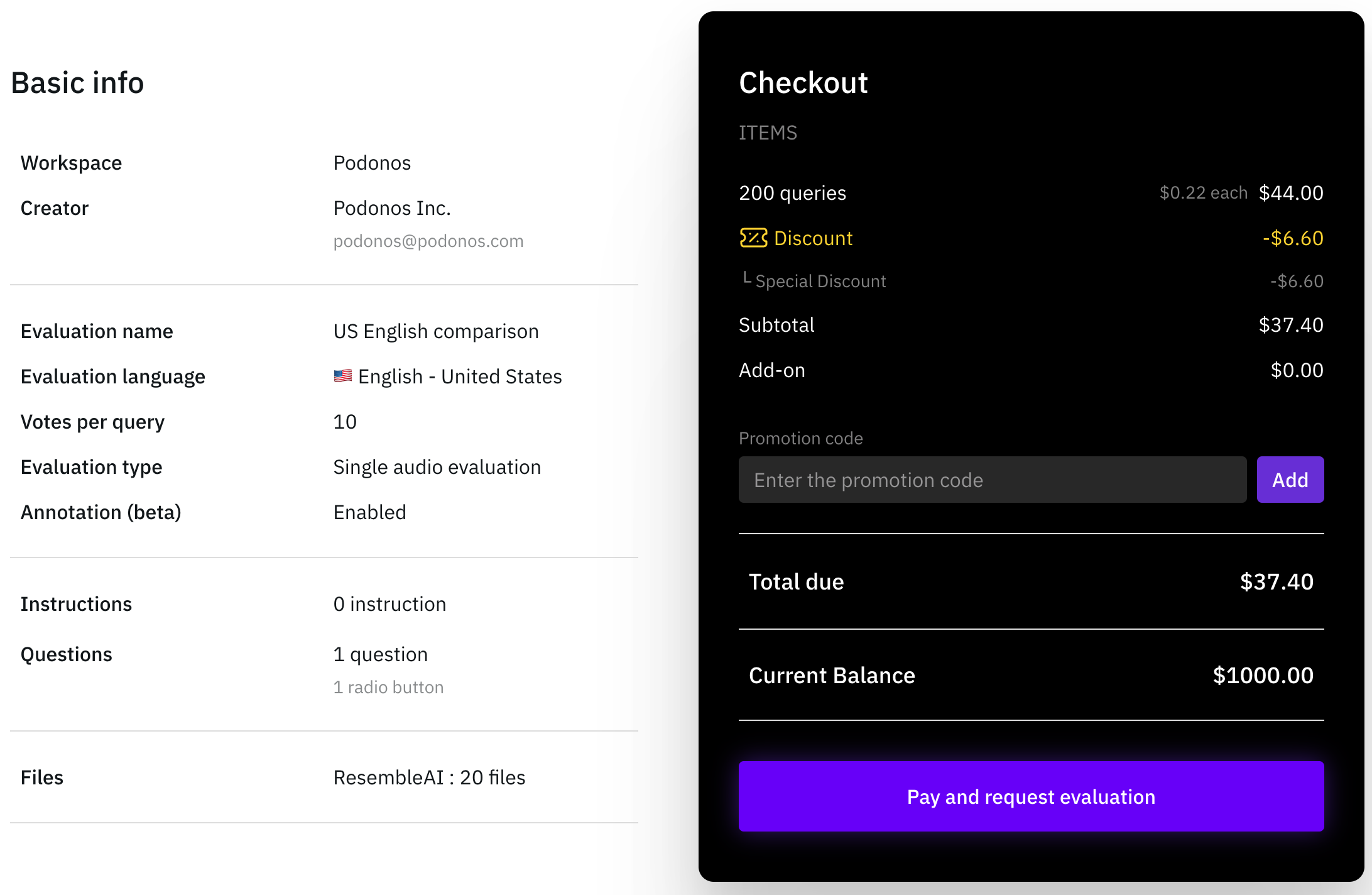
    Review all the details of your evaluation on the summary page. Ensure that all
    the information is correct before confirmation.
    <Frame>
      ![summary-checkout.png](https://static-public.podonos.com/docs/summary-checkout.png)
    </Frame>

    If necessary, proceed to payment section to confirm your evaluation.
  </Step>

  <Step title="Request Complete and View Evaluation Results">
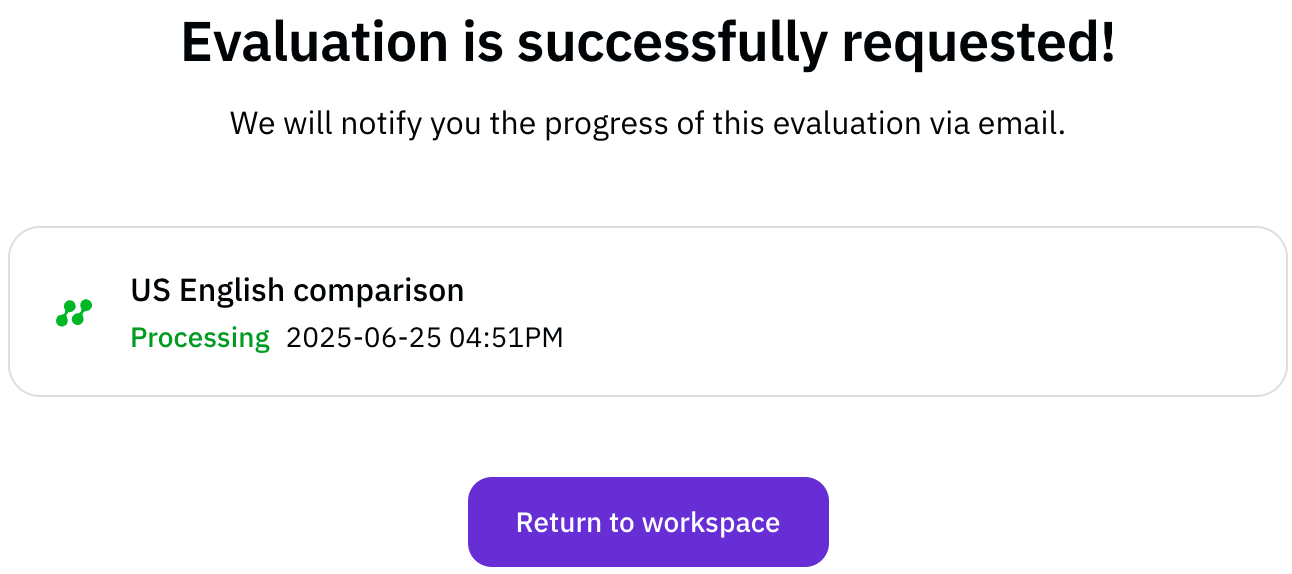
    Once you finish the final review, your evaluation request is confirmed.
    <Frame>
      ![request-complete.png](https://static-public.podonos.com/docs/request-complete.png)
    </Frame>

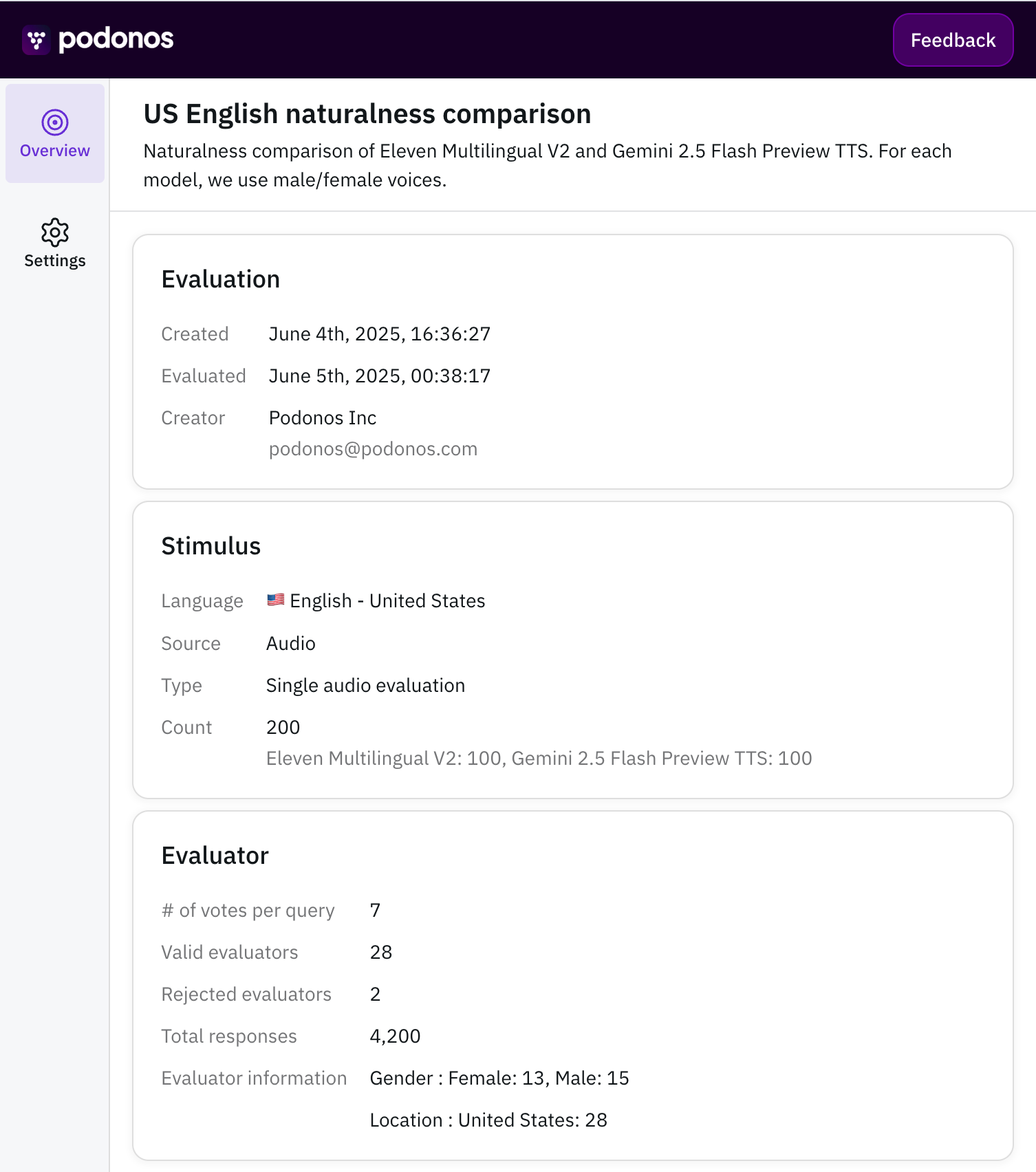
    You can view the details of your completed evaluation from the Workspace or
    through email.
    <Frame>
      ![eval-overview.png](https://static-public.podonos.com/docs/eval-overview.png)
    </Frame>
  </Step>
</Steps>

<Note>
  Once your evaluation completes, a report will be automatically generated and
  you will be notified via email.
</Note>
